
Start managing inventory in Zapstra
When a shop is Managed in Zapstra, you record receipts, counts and adjustments in Zapstra, and Zapstra writes the resulting stock levels to Shopify. Shopify still tracks stock and takes orders as it does today. This guide shows how to start, check, pause and stop.
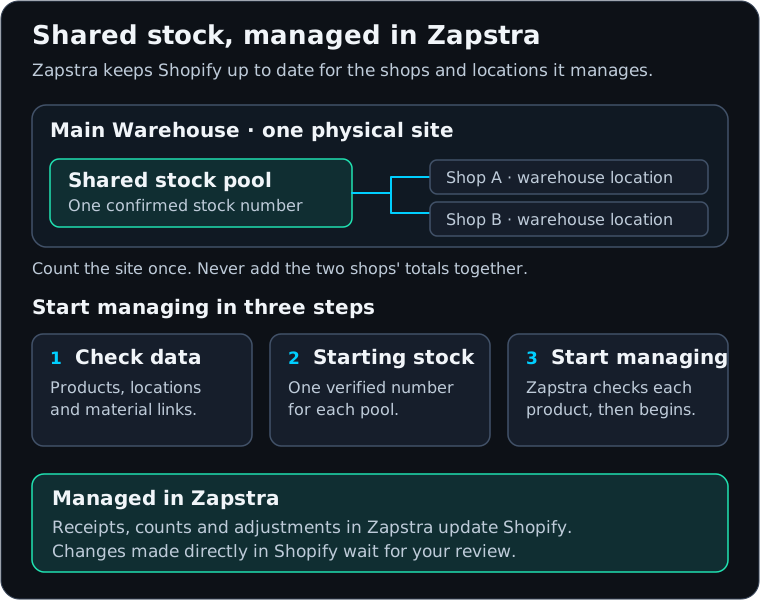
What changes when a shop is managed
- Zapstra writes stock levels to Shopify. Each receipt, count or adjustment you record in Zapstra updates the shop's stock in Shopify automatically.
- Changes made directly in Shopify are kept for your review. They appear in Inventory → Changes made in Shopify, where you Accept or Reject each one. Zapstra never reverses them silently. See Reconciliation and activity.
- Stock other apps hold in Shopify is shown, not blocked. If another app reserves stock, Zapstra shows it and never sells that stock.
You can also mark single locations as Not managed. See Choose which locations Zapstra manages.
Before you start
- Check your products and locations, and match materials across shops. See Organize and match materials and Locations and stock pools.
- Confirm starting stock. See Prepare and verify opening inventory.
- You need admin or editor access. Viewers can review the setup but can't start it.
Check how each shop is managed
Open Inventory → Locations & pools → Inventory management. You can also get there from Review inventory setup in the Setup Center or on Home.
The Stock pools and locations table has one column per shop. Each column shows:
| Field | What it shows |
|---|---|
| Management | Not managed yet, Managed in Zapstra, or Setting up inventory… while setup runs. |
| Updates | Updates to Shopify: On, Updates to Shopify: Paused or Updates to Shopify: Off. |
| Rows | Each location, and whether it is in a Shared pool, a Separate location or a Possible match. |
A shop marked View only doesn't have Zapstra Inventory Management installed yet. Use Connect to install it there. See Connect stores.
Start managing a shop
- Find the shop and choose Review inventory setup. The Set up inventory management window checks your products.
- Read how many products are ready. Products that need attention stay as they are in Shopify until they're fixed. Zapstra then adds them automatically.
- Read What changes and Before you start. Avoid receiving or counting stock in Shopify while setup runs.
- Choose Start managing in Zapstra.
- Follow the progress. Setup can take up to 20 minutes. You can close the window; setup keeps going, and View progress on the shop reopens it.
Check the result: the shop shows Managed in Zapstra and Updates to Shopify: On. The window says how many products are now managed.
Fix products that need attention
If some products weren't ready, the Inventory management page lists what to do next:
- Fix opens Fix negative stock (below).
- Review opens Changes made in Shopify for changes that are waiting for your decision.
- See list shows each remaining product and the reason, for example a unit that doesn't match, or stock held by another app. Many of these clear on their own on the next check.
Fix negative stock
Shopify can show a number below zero in Quality control, Damaged or Safety stock. That makes Shopify's Available too high, so you could sell stock you don't have. Zapstra can't manage these items until the number is fixed.
- Open Fix negative stock from Fix on the Inventory management page.
- For each item, choose Set to 0 (recommended) or Make it positive. The row shows how Available will change.
- Choose Apply fixes, review the summary, then choose Apply.
Check the result: fixed items move to Fixed. This writes to Shopify, but only Available and the fixed number change; on-hand counts stay the same. If the shop is managed and updates are on, Zapstra starts managing each fixed item automatically. Items marked Held by another app can only be released by that app.
Stop managing a shop
- Choose Stop managing on the shop.
- Read the confirmation and confirm.
Zapstra stops updating that shop's stock in Shopify. Shopify keeps its current numbers; nothing is set to zero. Record future stock changes for that shop in Shopify. You can start managing again at any time.
If the shop is the primary shop of a shared pool, Stop managing opens the disband confirmation instead (see below).
Share one warehouse's stock between shops
Use a shared pool only when shops sell the same physical stock. To combine two shops' records of one warehouse, follow Review and consolidate the same warehouse.
To add another shop's location to an existing pool:
- In Stock pools and locations, choose Connect location.
- Check the Location and choose the Pool.
- Read the note: Zapstra will update this shop's stock from the shared pool, and changes made directly in this shop no longer set the shared quantity.
- Choose Add to pool.
To stop sharing, choose Disband shared pool, review the affected shops and choose Disband pool. Zapstra stops updating stock for every shop in the pool, and each shop keeps its current numbers in Shopify. There is no undo; start managing each shop again if you need to. Disbanding doesn't move any goods.
Pause or resume updates to Shopify
- Pause updates to Shopify on a shop stops Zapstra writing to that shop. The shop shows Updates to Shopify: Paused.
- Resume updates to Shopify starts writing again.
If Restore inventory updates appears, updates were paused for a safety check:
- Choose Confirm inventory management and read the explanation for that shop.
- Confirm. A fresh inventory check runs while updates stay paused.
- Use Check status to follow it. If it failed, read the reason and choose Confirm and retry. If it says Review live sync, resume live sync first.
A pause you set with Pause updates to Shopify stays in place until you resume it.
Start syncing a single stock pool
Products that are ready start syncing during setup, so most stock rows already show Already syncing to your store. If a row isn't syncing yet, for example stock recorded at a pool later:
- Open Materials, choose the material and open Stock Levels.
- On the pool's row, open the action menu and choose Start syncing to your store.
- Check the pool name and Available in this app, then choose Start syncing.
From then on, every change to that pool's available stock goes to Shopify automatically.
If something goes wrong
| What you see | What to do |
|---|---|
| Refresh your store's numbers first | Refresh the store data, then return to the same row. |
| Fix the stock mismatch first | Resolve the difference in Reconciliation and activity. |
| Review inventory management first | Start managing the shop on Inventory management. |
| Record stock first | Record a starting quantity for that pool. See Opening inventory. |
| Stock recorded but syncing didn't start | The stock change is saved. Fix the stated cause, then use Start syncing. Don't record the change again. |
| Run the product check again before you start managing. | Choose Review inventory setup again. |
| This store leads a shared pool. | Disband the pool before you stop managing the shop. |
| Not ready to join this pool | Resolve the listed items, then try Add to pool again. |
For other problems, see Preparation and sync problems.