
Send, track and close purchase orders
Use the saved purchase order to send an order to a supplier, record an order placed elsewhere, follow its progress and close it when the purchasing work is finished. Review the order's receiving and invoice position separately before deciding that it is complete.
Start with a saved draft, including the correct destination, confirmed currency, products, quantities and costs.
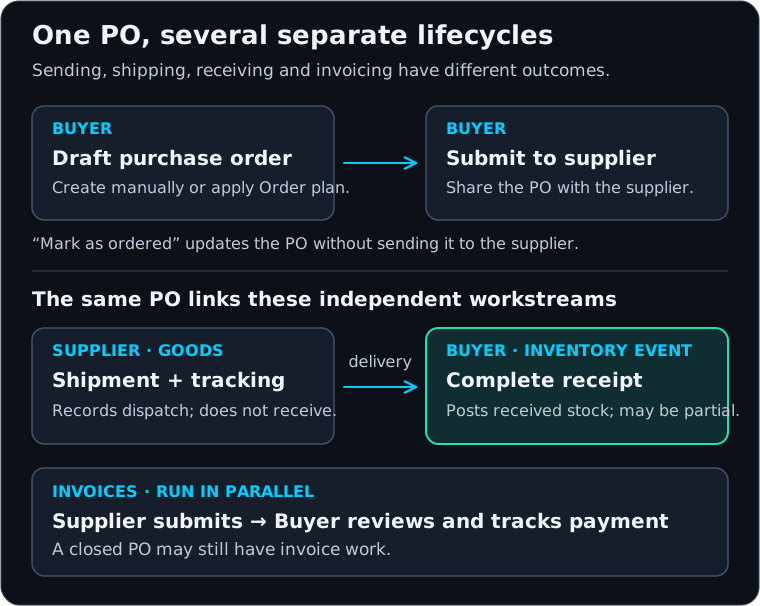
View the purchasing diagram at full size.
Choose how to submit the saved draft
Open the draft from Purchase orders, then open its Submit menu.
| Action on the saved PO | Use it when | Result |
|---|---|---|
| Submit to supplier | You want Zapstra Inventory Management to send the PO for supplier collaboration. | The order is submitted and the supplier response workflow begins. |
| Mark as ordered | You have already placed the order outside Zapstra Inventory Management and want to record it. | The order becomes submitted without starting the supplier-send workflow. |
Use this choice on the saved PO after checking the draft. Do not submit an order a second time simply because it was already emailed or placed by telephone.
Send the order
- On the saved draft, check the supplier contact, location, requested delivery and total.
- Choose Submit → Submit to supplier.
- Read any warnings. Zapstra Inventory Management checks the shipping destination and the supplier's current lead time at send time, so a date that was reasonable when you planned the order may need review now.
- If a warning requires acknowledgement, assess the affected lines. Revise the order if the date or quantity is wrong; proceed only when the displayed risk matches your intention.
- Confirm the result on the PO. Look for the sent confirmation and the supplier collaboration status, then check Collaboration for the sent version.
The supplier can inspect the shared PO, respond, propose changes and later provide shipment and invoice information. Sending does not mean that the supplier accepted the order or that stock has arrived.
Record an order placed elsewhere
- Open the saved draft and choose Submit → Mark as ordered.
- Check that the PO is now submitted.
- Keep the external confirmation or relevant details with your order records. Use internal notes or the Timeline as appropriate.
If you later need the supplier collaboration workflow, the submitted PO offers More actions → Send to supplier. Confirm that the supplier understands this refers to the existing order so the message is not mistaken for an additional purchase.
Read progress without confusing the milestones
The main PO status tracks the order and receiving lifecycle. The collaboration status tracks the conversation with the supplier. Shipment information tracks dispatched batches and carrier movement. Invoices and disputes have their own states.
For example, a PO can be Partially received while its supplier collaboration says Shipped. The supplier may have dispatched every batch, but your team has completed a receipt for only part of the order. A closed PO can still have an invoice awaiting review.
Use these areas of the PO together:
- Lines shows ordered, received and remaining quantities by product.
- Collaboration shows supplier versions, changes and invoice review.
- Receiving lists receipt records.
- Timeline holds comments and recorded activity.
- Documents contains attached records and downloads.
For the full vocabulary, see the glossary and status reference.
Request an update or review a revision
While waiting for the supplier or an outstanding shipment, use More actions → Request update from supplier when it is available. This requests an update; it does not accept proposed changes or alter the remaining quantity.
When the supplier proposes changes, the PO shows Supplier proposed changes — Review & Decide. Use the supplier changes guide to accept, counter-revise or reject the proposal. Always inspect the latest version before making a decision.
Duplicate, cancel or close
Duplicate creates another draft based on the existing PO. Open that draft and review its dates, quantities, prices, destination and notes before sending. Duplication is a starting point for another order, not confirmation that the old terms remain suitable.
Use More actions → Cancel order only when the action is available and cancellation reflects what should happen to the order. Coordinate any real-world cancellation with the supplier; changing an app record should not be your only evidence that a shipment was stopped.
When receiving is complete, Close becomes available. Some collaboration states also offer More actions → Close PO. Before closing, check remaining goods, open disputes, missing invoices and unpaid invoices. If the closing dialog lists unsettled invoices or says invoices could not be loaded, use Keep open while you investigate. Choose Close anyway only when you have decided to close with that outstanding work understood.
Closing does not record a receipt, pay an invoice or guarantee that every obligation is settled. A supplier may still submit an initial invoice after the PO is closed, and a submitted invoice can still require review. Receiving completion, rather than a manual status change, is what makes an order Fully received.
If an action fails or times out
Refresh the original PO and inspect its status, latest collaboration version and timeline before repeating a send, duplication or status action. If the record changed while you were reviewing it, read the new state and decide again. Do not create a replacement order merely to clear an uncertain result.