
Plan a production order and reserve components
Create a production order to turn a manufacturing bill of materials into a scheduled run, then release it when its component stock is ready. This guide is for planners preparing work for production operators.
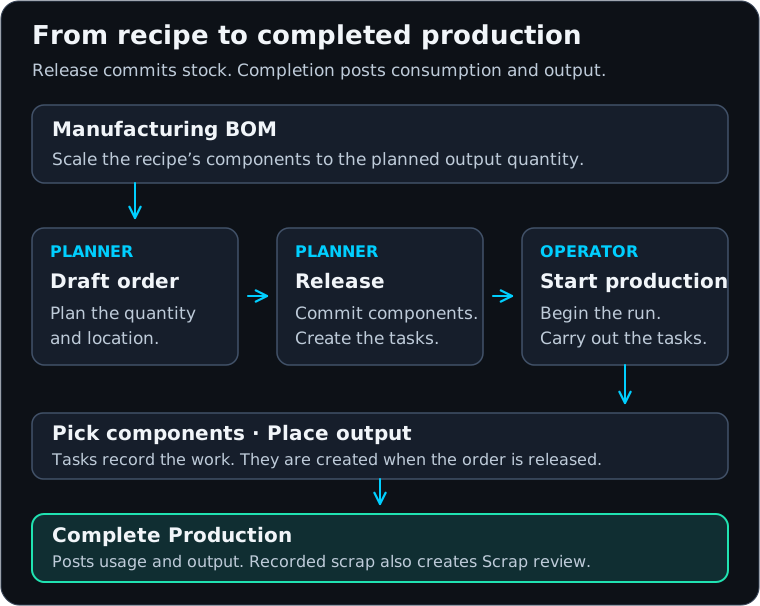
View the production diagram at full size.
Before you begin
Prepare an active finished good or semi-finished material, an active Manufacturing BOM, and the physical location where production will take place. Check component units and stock at that location. See Create and maintain bills of materials and Set up locations and shared stock pools.
A draft records your intention. Release commits available components to the run and freezes its execution details. Start production records that work has started. Completion records actual consumption and output. A scheduled date by itself does none of these things.
Create the draft
- Open Production and select Create production order.
- Under Output material, search for the finished good or semi-finished material you will build. Check its name, variant details and unit.
- Select the active manufacturing BOM version. If only one is available, it is selected automatically; still check its version, notes and Base qty.
- Enter Planned quantity in the output material's unit and choose Production location. Confirm the location even when a default is already selected.
- Review Component check. These are the selected BOM's direct components. A semi-finished component is consumed as that component; opening a nested BOM tree does not automatically create another production order for it.
- In Schedule, enter Planned start, Due date and Work centre as needed. Use the date format shown. Add useful run instructions in Notes.
- Select Create production order. On the resulting order, check its Draft status, Components, location, quantity and planning fields before release.
For example, a Gift box recipe with a base output of 1 each uses 1 kraft box, 2 tissue sheets and 1 metre of ribbon. A run of 10 Gift boxes, with no component scrap allowance, requires 10 kraft boxes, 20 tissue sheets and 10 metres of ribbon.
For a recipe defined per batch, quantities must also be divided by the BOM's base output. The creation preview may differ from the saved order for a base quantity other than one. Verify the saved Components table against your recipe before release; stop and investigate any mismatch rather than changing the planned output to compensate.
Creating an order and saving its schedule are separate operations. If an order exists but its dates or work centre are missing, correct Planning on that order and select Save planning. Do not create another order to repair its schedule. Use List or Calendar in Production to review planned work; an unscheduled order still needs an explicit release.
Choose component bins and release
- On the draft, review Planned component bins where bins are used. Enter each bin's system identifier, then select Save bins. These fields require system identifiers, not printed bin codes or barcodes. If you do not have the exact identifier for the production location, contact Support before saving.
- Recheck the component quantities and any bin warnings. Planned component bins become fixed when the order is released.
- Select Release when stock should be committed to this run. Select Release and start only when the run should also move immediately to In progress.
- Verify the new status and the Work section. Release creates Pick components and Place output tasks.
Release checks the stock that can currently be claimed. It is not enough for a component to appear on an incoming purchase order or to exist as on-hand stock already committed elsewhere. See Understand stock quantities.
If Not enough stock to release appears, the order remains a draft and no stock has been claimed by that unsuccessful release. Read the required, claimable and shortage quantities for each material and stock pool. Use the offered Order plan action when purchasing is needed, checking any quantity already planned before adding more. This records purchasing intent; it does not receive stock or make the release ready. An expected delivery date is not a promise that release will succeed.
Withdraw or cancel before execution
Use Withdraw release on a released order when you need to return it to draft. Enter the reason and confirm. A successful withdrawal releases its commitments and permits another review before a later release.
Withdrawal is only available before execution has been recorded. Starting work, recording picks or placements, or otherwise claiming specific stock can prevent it. If the app explains that work already exists, preserve that history and resolve the actual work; do not use a stock adjustment merely to make withdrawal possible.
Cancel ends a draft or an eligible unexecuted released order. It does not cancel completed production, and an in-progress run does not offer the same cancellation path.
Transfer and recovery considerations
Transfer to different location on completion records a destination for output, such as Outlet after production at Main Warehouse. The destination must use a different stock pool. Use this only when it matches the physical handoff: the linked transfer is processed as part of completion, and currently requires whole-number output quantities. For work needing a separate dispatch and receiving process, use stock transfers. A transfer-linked production order also has correction restrictions.
If Released, but not started appears, release succeeded and components are already committed. Reopen the same order and use Start production, or withdraw the eligible release. Do not create or release a duplicate run.
If BOMs, locations or work cannot be loaded, their absence is unknown rather than zero. Reload or use Try again, resolve the reported problem, then continue with Run production tasks and complete a build.