
Create and manage materials
A material is the item Zapstra Inventory Management purchases, holds or uses in production. Create one record for each distinct item, then connect its supplier information, units and Shopify listings to that record.
A Shopify product can contain several variants. Each variant may represent a different material, such as a different size. A supplier SKU identifies the item in that supplier's catalog; a barcode identifies a scannable item and its unit. Neither is a substitute for checking that two records describe the same physical goods.
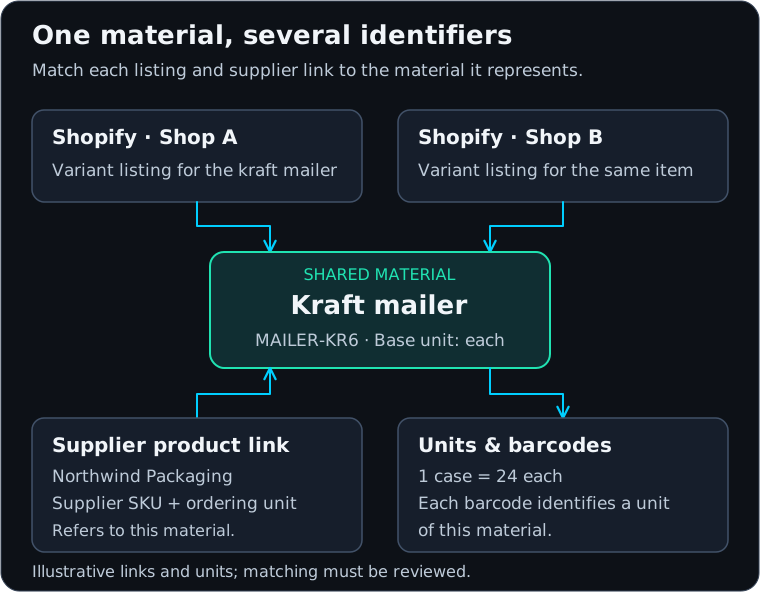
View the material diagram at full size.
Find an existing material first
Open Materials and choose the appropriate tab: Finished Goods, Semi-Finished, Raw Materials, Supplies, Packaging or All. Search before creating another record. Expand a product group and use Show more where needed to inspect its variants.
Open a material to see its Properties, Stock Levels, BOM, Suppliers, Units & barcodes, Compliance, Activity and Shops tabs. The header separates Material status from Plant status, which summarizes the material's status across stock locations.
If the page says it is showing one store's catalog, do not treat an absent row as proof that the item is missing from the whole organization. Check the relevant connected store and the material's Shops tab before creating a duplicate.
Create a component, packaging item or operating supply
Use this path for goods that do not need a Shopify listing, such as the Kraft mailer purchased from Northwind Packaging.
- From Materials, select Create material.
- Choose Raw Material, Semi-Finished, Packaging or Operating Supply. For Kraft mailer, choose Packaging.
- Enter a unique SKU, such as
MAILER-KR6, and a descriptive Name. Both are required for this path. - Choose Base unit of measure. Select Each (EA) if stock is counted as individual mailers, even when the supplier sells cases.
- Add a description and any known physical properties, tags or notes. Complete batch or expiry requirements only when they apply to your operations. You can assign a material group after creation using the named group picker in Properties.
- Select Save. Open the resulting material and verify its name, SKU, type and base unit.
Creating the record does not receive a purchase order or establish a stock quantity. Add supplier details and case conversions next, then record actual opening inventory or receive physically arrived goods through the appropriate workflow.
Create a finished good
The Finished good option creates the material first and can request Shopify listings separately.
- Select Create material, then Finished good.
- Enter Name and Base unit of measure. The SKU and Barcode fields are optional on this form. A barcode entered here is registered against the base unit.
- Review Requires batch tracking and Requires expiry tracking. A batch-tracked material cannot use this form's opening balance; its stock needs the appropriate lot information.
- Under Opening balance (optional), leave No opening balance selected unless you have an established physical quantity to record. If entering stock, choose its Stock location and enter Quantity on hand in the displayed base unit.
- Under Also activate on shops (optional), select only the shops that need a new listing and choose Draft or Unlisted in Create as. These requests do not create an Active storefront product.
- Select Create material and read every line under What happened and Shops.
The material, barcode, opening balance and each shop request have separate results. Material created does not establish that every optional step succeeded. Use Open material to inspect the record and Track each activation on the Shops tab to follow shop requests. Finish images, copy, categories and pricing in Shopify before making the product available for sale.
Edit properties and review tracking
The Properties form is already editable; change the fields and select Save in the save bar. Use Discard to abandon unsaved property edits. Procurement type is derived from the item's supplier and BOM relationships rather than selected directly.
Review Tracking and open Shops for the source details:
| State | Meaning and next action |
|---|---|
| On | Zapstra Inventory Management treats the item as quantity-tracked. Review any notice that connected shops disagree. |
| Off | Zapstra Inventory Management will not plan or hold stock for the item. Review whether Shopify tracking or a Zapstra Inventory Management override is responsible. |
| Unknown or unavailable | The current tracking answer is not established. Reload and investigate rather than treating the item as untracked. |
When tracking is off, an administrator can use Turn on tracking in Zapstra Inventory Management if the item should be tracked here. This changes Zapstra Inventory Management behavior; Shopify's Track quantity setting stays unchanged. To change Shopify itself, use Open in Shopify and review that setting there. Remove override returns the decision to the observed source settings. Read the refreshed tracking result after either action.
Manage listings and lifecycle carefully
In Shops, Listing status changes the Shopify product's status on that shop. It affects the product's other variants too. Choosing Archived opens a confirmation explaining that customers can no longer buy that product there; review the shop and confirm Archive only when intended. You can later choose Active or Draft where the control is available.
For a material that is not listed, Activate on this shop can request a Draft or Unlisted product. Review Copy title and price from and the currency message: a price is carried only when the source and destination currencies match. Check again follows an outstanding request; Open in Shopify to finish opens a created listing.
Stock-location lifecycle is separate. In Stock Levels, the location's actions menu contains Update pool status. Review New status, then select Change status. The menu offers only permitted transitions. Discontinued and Obsolete have no manual return transition, so they are unsuitable for a temporary pause. A Shopify archive is not a material merge or a stock adjustment.
If something fails
For a duplicate SKU or ambiguous identity message, inspect the existing materials and duplicate review. If creation timed out, find the original material before submitting a new creation.
After a partial creation, repair only the missing step. Check Stock Levels before entering another opening quantity, and check Shops and Shopify before requesting another listing. If a status update says Shopify has applied the change but Zapstra Inventory Management is still waiting, use Check again rather than reversing and reapplying it. If data is unavailable, reload; an unavailable list is not an empty catalog.
Continue with units and barcodes, supplier products, or opening inventory. Review inventory authority and syncing before relying on stock changes reaching Shopify.