
Choose who controls inventory and enable syncing
Use inventory control and syncing settings to decide how Zapstra Inventory Management and Shopify should handle stock changes. This guide is for the person responsible for the organization's inventory records and connected stores.
There are four distinct steps: prepare store data, record or verify stock, choose the controlling system and enable outbound syncing. Some screens combine two actions in one confirmation, but the outcomes remain separate.
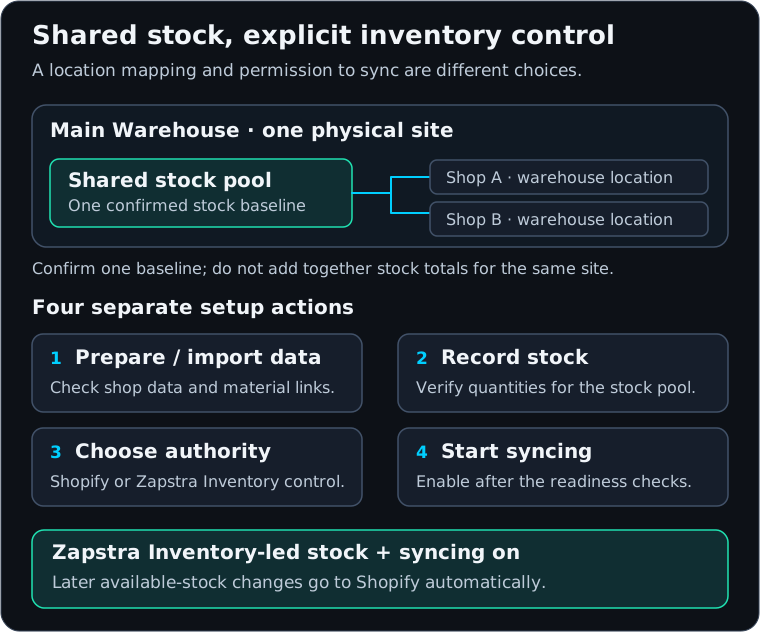
View the inventory-control diagram at full size.
Read the current control setting
Open Inventory → Locations & pools → Authority and sync. Current inventory control explains the existing setting for each shop. Opening this page does not change it.
| Setting shown | Meaning |
|---|---|
| Shopify-controlled inventory | Zapstra Inventory Management follows stock reported by Shopify. Automatic Zapstra Inventory Management stock updates to this shop are off. Supported updates you explicitly request are separate and can still be subject to a pause. |
| ZOC-controlled inventory | Eligible completed inventory work in the connected system can update writable stores. Shopify quantity differences are recorded for review. This is the Zapstra Inventory Management-led arrangement described in this guide. |
| Inventory managed with another system | The shop can receive updates from the system managing stock. This setting alone does not prove shared-pool membership or update readiness. |
| Observation only | Shopify changes are recorded for review, rather than establishing Zapstra Inventory Management stock or causing automatic outgoing stock updates. Explicitly requested supported updates are separate. |
The page also shows whether outgoing updates are paused and which shops are members of shared pools. If it cannot confirm a stored setting or pause state, refresh and investigate. An unconfirmed setting is not evidence that updating is enabled or disabled.
Choose the controlling system
Before switching, finish opening-inventory checks, review material matching and confirm the shop's physical location mappings. Settle any differences between the stock you physically hold and the quantities reported by the stores.
- In Authority and sync, find the correct shop.
- Choose Change inventory control.
- Select the offered destination. The choices use Zapstra is the source of truth — we push for Zapstra Inventory Management-led control and Shopify is the source of truth — we observe for Shopify-led control.
- Read the consequences and any blockers. Switching back to Shopify-led control stops automatic writeback to that shop.
- Choose Switch, then check Current inventory control and the shop's update state again.
If the page says Not ready to switch — resolve these first, correct the listed issues and return to the same shop. Changing the setting does not itself prove that every material and pool is ready to sync.
Shops marked View only cannot join shared pools until an inventory-managing app is installed and the required setup is complete. Eligibility unknown means the app could not establish that capability; do not treat it as permission to proceed. The shop card provides Install inventory app where applicable.
Enable syncing for a material and pool
Use this flow after verifying the stock position and selecting Zapstra Inventory Management-led control:
- Open Materials, choose the material and open Stock Levels.
- Find the correct pool. Review its on-hand and available quantities and its current syncing state.
- Open the row's action menu and choose Start syncing to your store.
- Check the pool name and Available in this app. Read the explanation before confirming.
- Choose Start syncing and inspect the result, including In your store now and the time that quantity was read.
Starting syncing records where the stock stands; this action does not itself send a new quantity to Shopify. Once syncing is on, every later change to that pool's available stock goes to Shopify automatically, without another review. Confirm only when that is the behavior you want.
The app checks the store's own quantity against a recent sync. If it says Refresh your store's numbers first, refresh the relevant store data and return. If it says Fix the stock mismatch first, use reconciliation. Another system controls this stock sends you back to inventory control; Record stock first means the position must be established before syncing can start.
If you use the stock editor's Set to action while the position is not already syncing, it can also attempt to enable syncing. The editor displays This also starts syncing stock for… to your store before you record the change. That confirmation covers both actions. Read Opening inventory before using it.
When the row says Stock recorded but syncing could not start, inspect the new stock quantity and resolve the stated cause. Use the row's Start syncing recovery action, or the standalone syncing action after the issue is resolved. Do not enter the same stock change again.
Connect a location to a shared pool
Use a shared pool only for shops that sell the same physical goods. Consolidating duplicate locations and confirming their authoritative quantity is described in Locations and stock pools.
If you are continuing from a completed Confirm shared location review, choose Enable pooled inventory only after checking the confirmed baseline. The success message is Pooled inventory enabled. If preflight checks refuse the action, resolve the listed issues and retry enablement on the original consolidation record; do not consolidate the locations again. Return to Authority and sync to review the resulting pool and shop settings.
To connect an eligible location to an existing pool, find it in Stock pools and locations on Authority and sync, choose Connect location, check the fixed or selected Location, choose the Pool and review the direction of updates. Add to pool makes that shop receive shared stock updates; its own inventory changes no longer control the shared quantity. Resolve any Not ready to join this pool messages before retrying.
A primary shop in a shared pool cannot use the ordinary switch-back action. Use Disband shared pool, review every affected shop and confirm Disband pool only when the group should stop sharing. Disbanding stops inventory pushes to all shops in the pool and returns them to observation. It has no one-click undo. Restoring writes requires choosing control and satisfying readiness again; disbanding is not a stock transfer or physical split.
Pause, resume and restore updates
Use Pause writeback on the relevant shop to pause its outgoing inventory updates. Resume writeback removes that operator pause; it does not correct mismatches, record missing stock or replace other readiness checks.
If Restore inventory updates appears, follow its separate confirmation flow. Choose Confirm inventory control, read the shop-specific explanation and confirm. A fresh inventory check runs while updates remain paused. Use Check status to follow it. If the check fails, review the reason and use Confirm and retry; if blocked, follow Review live sync to the missing setup or live-sync action. Any separate operator pause remains in place after this confirmation.
After any control change, check both Zapstra Inventory Management and the mapped Shopify locations during the next genuine inventory activity. If a request's result is uncertain, reload the current settings before repeating it. Use Sync and readiness troubleshooting for a problem that persists.