
Troubleshooting, FAQ, and Expected Behavior Guide
This guide covers three categories of questions about BundlesIQ:
- Expected behavior — Your order looks different than expected, but BundlesIQ is working correctly based on your handling mode. Start with Section 1 if your order "looks wrong" but processing succeeded.
- Error diagnosis — Something went wrong during processing. See Section 2 for the checklist and Section 3 for detailed error resolution.
- FAQ and procedures — Common questions about processing, pricing, inventory, and operational tasks. See Section 4 through Section 7.
1. Understanding Expected Behavior by Handling Mode
BundlesIQ transforms orders differently depending on your handling mode. Before troubleshooting, confirm that what you see is not the intended behavior of your chosen mode.
1.1 Quick Reference: What Each Mode Does to Your Order
| Handling Mode | Bundle Line Item | Component Line Items | Revenue Attributed To | Best For |
|---|---|---|---|---|
| Hybrid | Stays at $0.00 | Added with allocated prices | Component SKUs | B2B, wholesale |
| Reporting | Stays at original price | Added at $0.00 each | Bundle (ghost) SKU | DTC, B2C |
| Operational | Removed (qty set to 0) | Added with allocated prices | Component SKUs | Distribution, 3PL |
| Parent-Only (BOM) | Stays at original price | Not added to the order | Bundle (ghost) SKU | Made-to-order, kitting |
In all four modes, the order total remains unchanged from what the customer paid at checkout.
To check your mode: Open the bundle in BundlesIQ > Bundles and look at the Handling Mode field. If it says "Use store default," check BundlesIQ > Settings > Default Handling Mode.
1.2 Why Did BundlesIQ Remove the Bundle From My Order?
Short answer: You are using Operational mode. Removing the bundle line item is the correct, expected behavior.
In Operational mode, BundlesIQ sets the bundle (ghost SKU) quantity to zero and adds the individual component SKUs with their allocated prices. The order total remains unchanged. This is designed for warehouses, distributors, and 3PLs that require strict SKU-level accuracy — no bundle abstraction left behind.
Example — before processing:
Summer Essentials Bundle (x1) $99.00
After Operational mode processing:
Sunglasses (x1)                  $41.25
Beach Towel (x1)                 $33.00
Sunscreen (x1)                   $24.75
Total                            $99.00
The bundle line is gone. Only the real, fulfillable SKUs remain.
If you do not want the bundle removed, switch to one of these modes:
- Hybrid mode — Bundle stays on the order at $0, components are added with allocated prices. Good for B2B and wholesale.
- Reporting mode — Bundle stays at its original price, components are added at $0. Good for DTC and clean revenue reporting.
- Parent-Only (BOM) mode — Bundle stays at its original price, no component lines are added. Good for made-to-order and kitting workflows.
See Handling Modes Explained for a full comparison.
Mode changes apply to new orders only. Previously processed orders are not retroactively modified. See Section 1.7.
1.3 Why Are My Components Showing at $0?
Short answer: You are using Reporting mode. Components at $0 is the correct, expected behavior.
In Reporting mode, the bundle line item keeps its original price ($99.00 in the example), and individual components are added at $0.00 each. This keeps revenue attributed to the bundle SKU, which is ideal for DTC brands that want clean Shopify Analytics and customer-friendly order views.
Example — after Reporting mode processing:
Summer Essentials Bundle (x1)    $99.00
Sunglasses (x1)                   $0.00
Beach Towel (x1)                  $0.00
Sunscreen (x1)                    $0.00
Total                            $99.00
If you need priced component lines, switch to Hybrid mode or Operational mode.
3PL note: Some 3PLs expect all line items to have prices for customs declarations. If your 3PL reports issues with $0 component lines, consider Hybrid mode instead.
1.4 Why Is the Bundle Showing at $0 on the Order?
Short answer: You are using Hybrid mode. The bundle at $0 is the correct, expected behavior.
In Hybrid mode, the bundle line item is set to $0.00 and the component line items carry the allocated prices. This preserves both what was purchased (the bundle line) and what needs to be fulfilled (the components with prices), making it ideal for B2B and wholesale.
Example — after Hybrid mode processing:
Summer Essentials Bundle (x1)     $0.00
Sunglasses (x1)                  $41.25
Beach Towel (x1)                 $33.00
Sunscreen (x1)                   $24.75
Total                            $99.00
If you want the bundle to keep its original price, switch to Reporting mode or Parent-Only (BOM) mode.
1.5 Why Were No Component Lines Added to My Order?
Short answer: You are most likely using Parent-Only (BOM) mode. No component lines on the order is the correct, expected behavior.
In Parent-Only mode, the bundle stays on the order exactly as placed — no line items are added, no prices are changed. BundlesIQ manages component inventory behind the scenes by reserving, consuming, and restocking component stock automatically.
Example — after Parent-Only mode processing:
Summer Essentials Bundle (x1)    $99.00
Total                            $99.00

(No component line items on the order.
 Component inventory is reserved, consumed, and restocked behind the scenes.)
How to verify processing succeeded:
- Check the BundlesIQ Health dashboard — the order should show status Processed
- Check for the
BIQ_READYorder tag in Shopify Admin - Check the component products' inventory —
reservedquantities should have increased
If you expected component lines to appear, verify:
- Your handling mode is not set to Parent-Only (check both the bundle and store default)
- If the mode is correct but components still did not appear, see Section 2.1 for processing failure diagnosis
1.6 What Does the Customer See After Checkout?
The customer's checkout experience is identical in all four modes — they purchase the bundle product at its listed price. The transformation happens after checkout, so timing matters:
| Touchpoint | What the Customer Sees |
|---|---|
| Checkout | The original bundle product at the bundle price (transformation has not happened yet) |
| Order confirmation email | Usually the original bundle product — the email is sent before transformation completes in most cases |
| Order status page | The transformed order (if they check after processing completes, typically 2-15 seconds) |
| Account order history | The transformed order |
Key insight: The order confirmation email almost always shows the pre-transformation order because Shopify sends the email immediately after order creation, before BundlesIQ receives the webhook and processes it.
If customer-facing order clarity is important, use Reporting mode or Parent-Only mode — these preserve the most familiar order view for the customer, since the bundle name and price remain visible even after transformation.
1.7 I Changed My Handling Mode but Old Orders Did Not Change
This is expected. Handling mode changes apply to new orders only. Previously processed orders are not retroactively modified.
Why: BundlesIQ uses the Shopify Order Edit API, which creates audit-tracked changes. Retroactively re-transforming orders would generate new order edit entries, potentially confuse accounting, and risk data integrity for orders that may already be fulfilled or partially fulfilled.
What you can do:
- For future orders: The new mode takes effect immediately for orders placed after the change
- For specific past orders (draft orders only): Use the Revert & Reprocess tool to re-transform individual draft orders under the new mode
- For fulfilled orders: These cannot be re-transformed. Adjust reporting manually if needed
- For unfulfilled regular orders: These cannot be reverted (Shopify Order Edit API limitation), but you can reprocess them if the original transformation failed
2. Diagnosing Processing Failures
2.1 Bundle Did Not Process / Components Did Not Appear
Symptoms: You placed an order containing a bundle product, but the order still shows only the ghost SKU without component line items.
Parent-Only (BOM) mode: If your bundle uses Parent-Only mode, this is expected behavior. In Parent-Only mode, no component line items are added to the order. The bundle line stays as-is and component inventory is managed behind the scenes. Check the BundlesIQ Health dashboard to confirm the order was processed successfully, and verify that component
reservedquantities increased. See Section 1.5.
Check these in order:
Is the bundle Active?
- Open the bundle in BundlesIQ > Bundles and verify the status is Active (not Draft, Inactive, or Archived)
Is order processing enabled?
- Go to BundlesIQ > Settings and verify Process orders is enabled (or Process draft orders if it was a draft order)
Does the processing scope include this order?
- If your processing scope is set to "Tagged only," verify the order has the required tag
- If you have exclude tags configured, verify the order does not have an excluded tag
Was the webhook received?
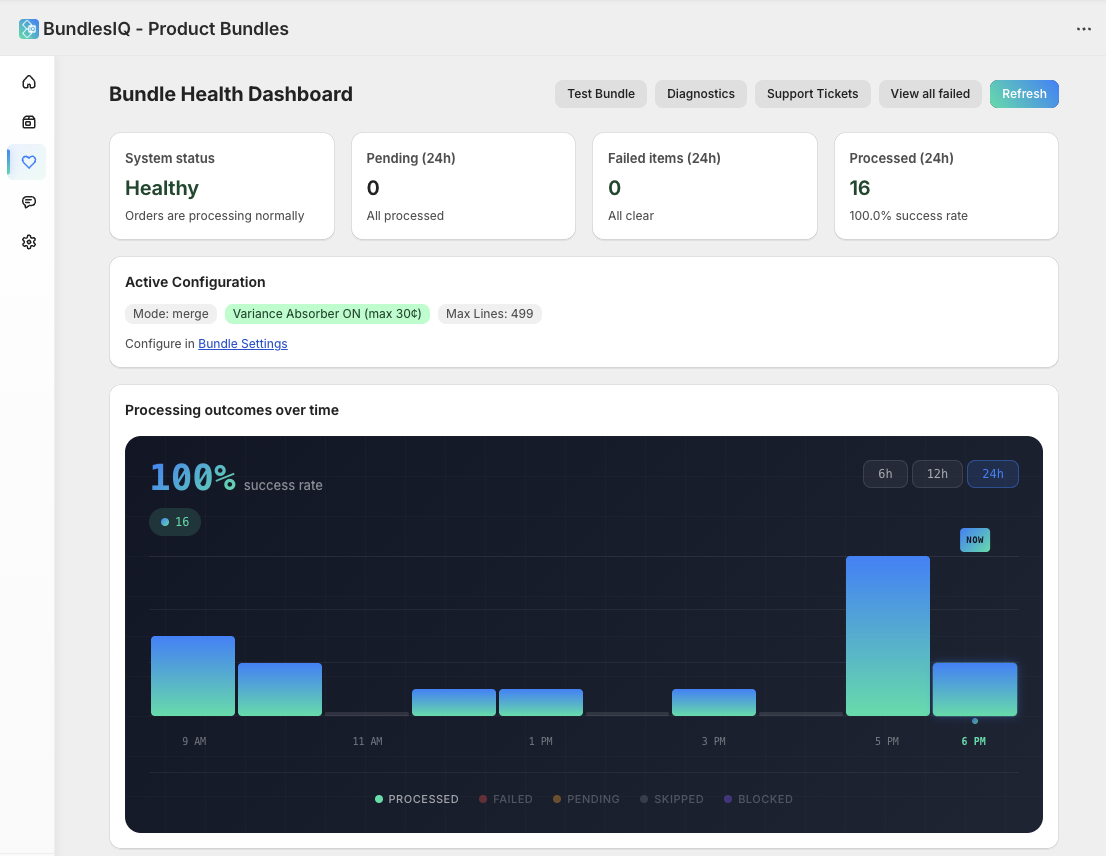
- Check the BundlesIQ > Health dashboard for the order. If the order does not appear at all, Shopify may not have delivered the webhook
- In Shopify Admin, go to Settings > Notifications > Webhooks and check for failed deliveries
Was there a processing error?
- Check the Health dashboard for a Failed status on the order
- Look at the error message for details (e.g., missing component variant, API error)
Has the order already been fulfilled?
- BundlesIQ only processes orders that have not been fulfilled. If the order's fulfillment status is not "unfulfilled," processing is skipped
Was the order already processed?
- BundlesIQ is idempotent — it checks for existing transformation metadata before processing. If the order was already transformed, it will not process again. Check the order metafield
bundles_iq.transformation_audit
- BundlesIQ is idempotent — it checks for existing transformation metadata before processing. If the order was already transformed, it will not process again. Check the order metafield
Are you in Parent-Only mode without realizing it?
- If your store default or bundle-level override is set to Parent-Only, the order was processed but no component lines were added — this is by design. See Section 1.5
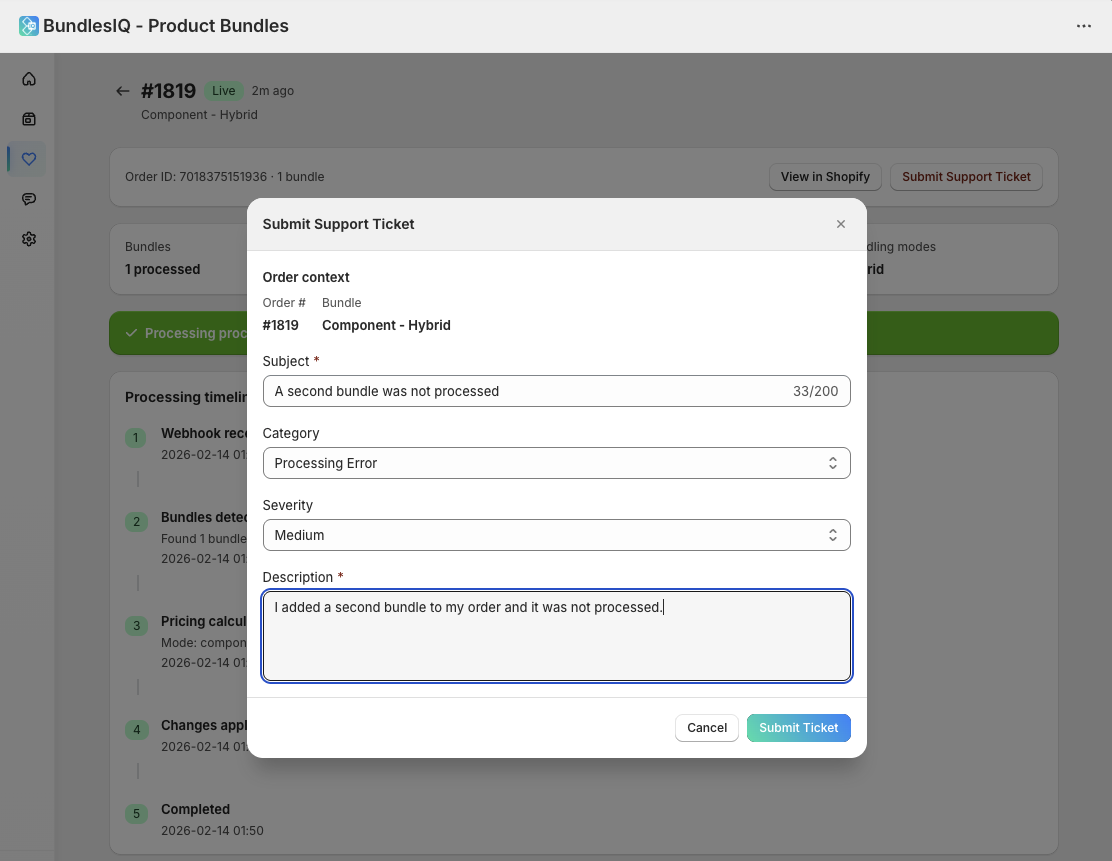
If none of the above apply, contact support with the order number and your BundlesIQ Health dashboard screenshot.
You can submit a support ticket directly from the order's processing detail page:
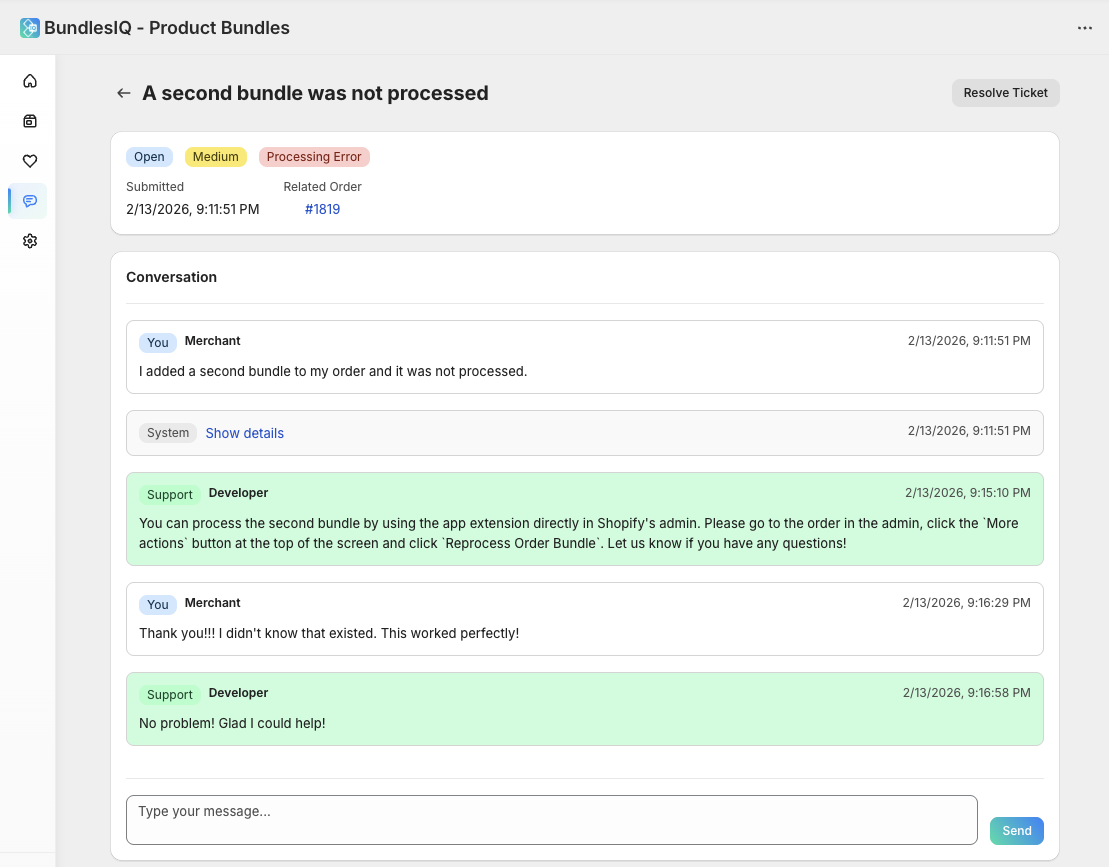
Support tickets include a live chat conversation with the Zapstra team:
2.2 Complete Error Code Reference
When processing fails, BundlesIQ logs an error code on the Health dashboard. Below is the complete reference of all error codes, grouped by category.
Authentication Errors
| Error Code | Meaning | Solution |
|---|---|---|
AUTH_MISSING_CREDENTIALS |
No API credentials found for the store | Reinstall BundlesIQ or contact support to verify the installation |
AUTH_MISSING_TOKEN |
Access token is missing or expired | Reinstall BundlesIQ from the Shopify App Store to generate a new token |
AUTH_INVALID_TOKEN |
Access token is invalid or corrupted | Reinstall BundlesIQ from the Shopify App Store |
AUTH_PERMISSIONS_REVOKED |
Required API permissions were revoked | Go to Shopify Admin > Settings > Apps and re-grant BundlesIQ's permissions, or reinstall the app |
Shopify API Errors
| Error Code | Meaning | Solution |
|---|---|---|
SHOPIFY_THROTTLED |
Shopify API rate limit hit | No action needed — BundlesIQ automatically waits and retries. If persistent during high-volume periods, processing may queue briefly |
SHOPIFY_API_ERROR |
General Shopify API error | Check the error details on the Health dashboard. This is often a temporary Shopify-side issue. Retry from the Health dashboard if it persists |
SHOPIFY_TIMEOUT |
Shopify API request timed out | Usually a temporary Shopify performance issue. BundlesIQ retries automatically. If persistent, check Shopify Status |
Draft Order Errors
| Error Code | Meaning | Solution |
|---|---|---|
DRAFT_OVERWRITTEN |
The draft order was modified by another process after BundlesIQ began its transformation | Retry or reprocess the draft order. If a third-party app is also editing drafts, coordinate processing order |
DRAFT_CONCURRENT_EDIT |
Another process modified the draft order at the same time as BundlesIQ | See Section 3.2 for details. Retry from the Health dashboard |
Pricing Errors
| Error Code | Meaning | Solution |
|---|---|---|
PRICE_VARIANCE_CRITICAL |
The calculated total differs significantly from the expected order total | See Section 3.1 for detailed diagnosis. Review the bundle's pricing configuration and check if component prices have changed in Shopify |
PRICE_VALIDATION_FAILED |
Price calculations did not pass validation checks | Review the bundle's pricing strategy and component retail prices. Check for misconfigured discounts or pricing rules |
Product and Variant Errors
| Error Code | Meaning | Solution |
|---|---|---|
PRODUCT_NOT_FOUND |
A component product was deleted from Shopify | Re-add the product in Shopify, or update the bundle in BundlesIQ to use a different component product |
VARIANT_NOT_FOUND |
A component variant was deleted or archived in Shopify | Update the bundle in BundlesIQ to use a valid variant. Check Shopify Admin for the variant's status |
VARIANT_UNAVAILABLE |
A component variant exists but is not available for purchase | Check the variant's status in Shopify — it may be archived, out of stock, or unpublished |
Validation Errors
| Error Code | Meaning | Solution |
|---|---|---|
VALIDATION_COMPONENT_MISSING |
A required component is not configured in the bundle definition | Open the bundle in BundlesIQ and verify all components are present and correctly mapped |
VALIDATION_CURRENCY_MISMATCH |
The order currency does not match the bundle's configured currency | Verify multi-currency settings. BundlesIQ requires the order currency to match the bundle's pricing currency |
Entitlement and Processing Errors
| Error Code | Meaning | Solution |
|---|---|---|
ENTITLEMENT_LIMIT_EXCEEDED |
Your plan's bundle processing limit has been reached | Upgrade your plan or wait for the next billing cycle |
PROCESSING_BLOCKED_MAINTENANCE |
BundlesIQ is in maintenance mode and not processing orders | No action needed — processing resumes automatically when maintenance ends. Orders are queued and will be processed |
RETRY_EXHAUSTED |
The maximum number of retry attempts has been reached | Review the original error that caused the retries. Fix the underlying issue, then use Reprocess from the Health dashboard |
System Errors
| Error Code | Meaning | Solution |
|---|---|---|
SYSTEM_ERROR |
An unexpected internal error occurred | Contact support with the order number and Health dashboard screenshot. These are rare and usually require investigation |
CONFIGURATION_ERROR |
The bundle or store configuration is invalid | Review the bundle's configuration in BundlesIQ. Check for missing required fields, invalid pricing rules, or conflicting settings |
BOM (Parent-Only) Errors
These errors apply only to bundles using Parent-Only (BOM) mode:
| Error Code | Meaning | Solution |
|---|---|---|
BOM_INSUFFICIENT_AVAILABLE |
A component does not have enough available inventory at the target location to fulfill the reservation |
See Section 3.3. Check component inventory levels at the fulfillment location |
BOM_RESERVATION_FAILED |
The inventory reservation API call failed | See Section 3.3. Retry from the Health dashboard. If persistent, check Shopify's inventory API status |
BOM_CONSUMPTION_FAILED |
The inventory consumption (on fulfillment) failed | See Section 3.3. Verify the reservation exists and has not already been consumed or released |
BOM_RELEASE_FAILED |
The inventory release (on cancellation) failed | See Section 3.3. Verify the reservation exists. May require manual inventory adjustment |
BOM_LOCATION_NOT_FOUND |
The target inventory location could not be determined | Check the bundle's location strategy setting. Verify the fulfillment order has an assigned location, or that your configured single location exists and has inventory |
2.3 Understanding Attention Items
Attention items appear on the Health dashboard to flag orders that need review. They differ from errors — the order may still have processed successfully, but something unusual was detected.
| Attention Type | Severity | Meaning | Action |
|---|---|---|---|
processing_failed |
Error | The order could not be processed | Check the error code in Section 2.2 and resolve the underlying issue. Retry or reprocess |
price_variance_critical |
Error | The calculated price differs significantly from the expected total | See Section 3.1. Review pricing configuration and component prices |
concurrent_edit_detected |
Warning | Another process modified the order during BundlesIQ's transformation | See Section 3.2. Usually resolved by retrying |
reservation_failed |
Error | Parent-Only mode: component inventory could not be reserved | Check component inventory levels and the location strategy. See Section 3.3 |
consumption_failed |
Warning | Parent-Only mode: reserved inventory could not be consumed on fulfillment | Verify the reservation still exists. May need manual inventory adjustment. See Section 3.3 |
release_failed |
Warning | Parent-Only mode: reserved inventory could not be released on cancellation | Verify the reservation exists. May need manual inventory adjustment. See Section 3.3 |
shopify_api_error |
Warning | A Shopify API error occurred during processing | Check error details. Usually transient — retry from the Health dashboard |
2.4 Understanding Transform Flags
Transform flags are informational markers added to processed orders to explain pricing decisions. They appear on the Health dashboard under the order's processing details.
| Flag Code | Title | Description | Severity |
|---|---|---|---|
BUNDLE_EXCEEDS_COMPONENTS |
Bundle Price Exceeds Component Sum | The bundle retail price is higher than the total of its component prices. This may indicate a pricing configuration issue — the excess amount will be absorbed by the variance absorber | Medium |
PRICE_INCREASE_NOT_POSSIBLE |
Price Increase Not Possible | A component price cannot be increased on a finalized Shopify order. This is a Shopify Order Edit API limitation — the component will be set to its original Shopify price instead of the higher allocated price | High |
SPECIFIC_RETAIL_EXCEEDS_CONTEXTUAL |
Component Price Exceeds Shopify Price | A component's configured retail price in BundlesIQ is higher than its current Shopify price. The price cannot be increased on finalized orders, so the Shopify price is used instead | High |
DOLLAR_DISCOUNT_EXCEEDS_RETAIL |
Discount Exceeds Retail Price | The configured dollar discount for a component exceeds its retail price, which would result in a negative line total. The discount is capped at the retail price | Medium |
ORDER_LEVEL_PROMO_ROUNDING_VARIANCE |
Promo Rounding Variance | Distributing an order-level promotion across components created a small rounding difference. A reconciliation line was added to balance the total | Low |
processing_blocked |
Processing Blocked | Order processing was blocked by entitlements, maintenance mode, or another gate condition. The order was not transformed | High |
Flags do not necessarily mean something is wrong. Many flags are informational — for example,
ORDER_LEVEL_PROMO_ROUNDING_VARIANCEsimply means BundlesIQ added a reconciliation line to handle a 1-2 cent rounding difference, which is normal.
3. Specific Error Deep Dives
3.1 Price Variance Critical
Error code: PRICE_VARIANCE_CRITICAL
Symptom: The order fails processing with a "price variance critical" error, or the Health dashboard shows a price_variance_critical attention item.
What it means: BundlesIQ detected that the sum of the allocated component prices differs significantly from the original bundle price. This safety check prevents orders from being transformed with incorrect totals.
Common causes:
Component price changed in Shopify after bundle was configured
- If a component's Shopify price increased since you set up the bundle, BundlesIQ cannot increase the line item price on finalized orders (Shopify Order Edit API limitation)
- The gap between the expected allocation and the actual achievable price creates a variance
Discount code interaction
- A customer-applied discount code may create an allocation that conflicts with the bundle pricing strategy
- Percentage discounts on bundles with dollar-off component pricing can create edge cases
Currency rounding on international orders
- Multi-currency orders may produce rounding differences that exceed the variance threshold
Resolution:
- Open the order in the Health dashboard and review the pricing details
- Check each component's current Shopify price vs. the bundle's configured allocation
- If a component price changed, update the bundle's pricing configuration to reflect current prices
- Reprocess the order from the Health dashboard after fixing the configuration
- If the variance is small and expected, contact support to discuss adjusting the variance threshold
3.2 Concurrent Edit Detected on Draft Orders
Error code: DRAFT_CONCURRENT_EDIT
Symptom: A draft order fails processing with a "concurrent edit" error.
What it means: While BundlesIQ was transforming the draft order, another process (another app, a Shopify Admin user, or a Shopify Flow) modified the same draft order. Shopify's Draft Order API uses optimistic concurrency — if the draft is modified between BundlesIQ reading it and writing the transformation, the write fails.
Common causes:
- Another app editing draft orders — Apps that modify draft orders (e.g., discount apps, tax apps) may conflict
- Manual editing during processing — A staff member edited the draft order in Shopify Admin while BundlesIQ was processing it
- Shopify Flow automation — A Flow that modifies draft orders may trigger at the same time as BundlesIQ
Resolution:
- Retry — Click Retry on the Health dashboard. In most cases, the concurrent edit was a one-time race condition and the retry succeeds
- If retries keep failing — Identify the other process that is editing the draft order and coordinate timing. You may need to:
- Disable other draft order apps temporarily
- Adjust Shopify Flow timing
- Ensure staff do not manually edit draft orders before BundlesIQ processes them
This error does not apply to regular orders. Regular order processing uses the Order Edit API, which has different concurrency semantics.
3.3 BOM-Specific Errors
These errors apply only to bundles using Parent-Only (BOM) mode. They relate to inventory reservation, consumption, and release operations.
BOM_INSUFFICIENT_AVAILABLE
Symptom: Order processing fails because a component does not have enough available inventory.
Cause: The component's available quantity at the target inventory location is less than what the bundle requires.
Resolution:
- Check the component's inventory in Shopify Admin at the relevant location
- Restock the component or adjust the location strategy
- If using "Fulfillment order location" strategy, verify the fulfillment order is assigned to a location with sufficient stock
- Reprocess the order after inventory is available
BOM_RESERVATION_FAILED
Symptom: The inventory reservation API call failed even though sufficient inventory appears to be available.
Cause: A transient Shopify Inventory API error, or another process modified the inventory between the availability check and the reservation call.
Resolution:
- Retry from the Health dashboard — this usually resolves transient API issues
- If persistent, check if another inventory management app is conflicting
- Verify the inventory location is correctly configured in Shopify
BOM_CONSUMPTION_FAILED
Symptom: When the order was fulfilled, BundlesIQ could not consume (decrement) the reserved inventory.
Cause: The reservation may have already been manually released or consumed by another process, or a Shopify API error occurred.
Resolution:
- Check the component's inventory levels — if the reservation was already consumed, no action is needed
- If the inventory is incorrect, manually adjust it in Shopify Admin
- Check the Health dashboard logs for the specific API error
BOM_RELEASE_FAILED
Symptom: When the order was cancelled, BundlesIQ could not release the reserved inventory back to available.
Cause: The reservation may have already been consumed (if the order was fulfilled before cancellation) or released by another process.
Resolution:
- Check if the inventory was already released — if available quantities look correct, no action is needed
- If inventory is stuck in reserved state, manually adjust it in Shopify Admin
- Contact support if this occurs repeatedly
BOM_LOCATION_NOT_FOUND
Symptom: BundlesIQ cannot determine which inventory location to use for the reservation.
Cause: Depends on the location strategy:
- "Fulfillment order location" — The order does not have a fulfillment order with an assigned location, or the assigned location does not carry the component
- "Single location" — The configured location does not exist or does not have the component stocked
Resolution:
- Verify the location strategy in BundlesIQ > Settings or the bundle's override settings
- If using fulfillment order location, check that the order has a fulfillment order assigned to a valid location
- If using single location, verify the configured location exists and has the component products stocked
- Ensure components are stocked at the relevant location in Shopify Admin
3.4 Shopify API Errors
Error codes: SHOPIFY_THROTTLED, SHOPIFY_API_ERROR, SHOPIFY_TIMEOUT
Symptom: Processing fails with a Shopify API-related error.
How BundlesIQ handles Shopify API issues:
- Rate limits (
SHOPIFY_THROTTLED): BundlesIQ automatically backs off and retries with exponential delay. No action is needed in most cases. During high-volume events (flash sales, bulk imports), you may see a brief delay in processing. - API errors (
SHOPIFY_API_ERROR): These are usually transient. BundlesIQ retries automatically up to the configured maximum attempts (default: 1 automatic retry). - Timeouts (
SHOPIFY_TIMEOUT): The Shopify API took too long to respond. BundlesIQ retries automatically.
When to take action:
- If a Shopify API error persists after automatic retries, check Shopify Status for ongoing platform issues
- If rate limiting is frequent, review whether other apps on your store are consuming excessive API quota
- Click Retry on the Health dashboard to manually trigger a retry after the issue resolves
3.5 Auth Errors
Error codes: AUTH_MISSING_CREDENTIALS, AUTH_MISSING_TOKEN, AUTH_INVALID_TOKEN, AUTH_PERMISSIONS_REVOKED
Symptom: Processing fails with an authentication error. All orders fail, not just specific bundles.
Common causes:
- App permissions were revoked — Someone changed the app's permissions in Shopify Admin
- App was uninstalled and reinstalled — The previous access token was invalidated
- Shopify token rotation — Rare, but Shopify may rotate tokens during platform updates
Resolution:
- Go to Shopify Admin > Settings > Apps and sales channels
- Find BundlesIQ and click Manage
- If permissions are missing, click to re-grant them
- If the issue persists, uninstall and reinstall BundlesIQ from the Shopify App Store
- After reinstallation, verify your bundles and settings are intact (they are stored server-side and will reconnect)
All queued orders will process once authentication is restored. No orders are lost.
4. Pricing and Reporting Troubleshooting
4.1 Discount or Price Looks Wrong
Symptoms: After bundle processing, the component prices on the order do not match what you expected.
Check these in order:
Verify your pricing strategy
- Open the bundle in BundlesIQ and check the pricing mode (bundle-led or component-led) and strategy
- Review the price preview to see the expected allocation
Check for pricing warnings (transform flags)
- In the BundlesIQ Health dashboard, look for flags on the order:
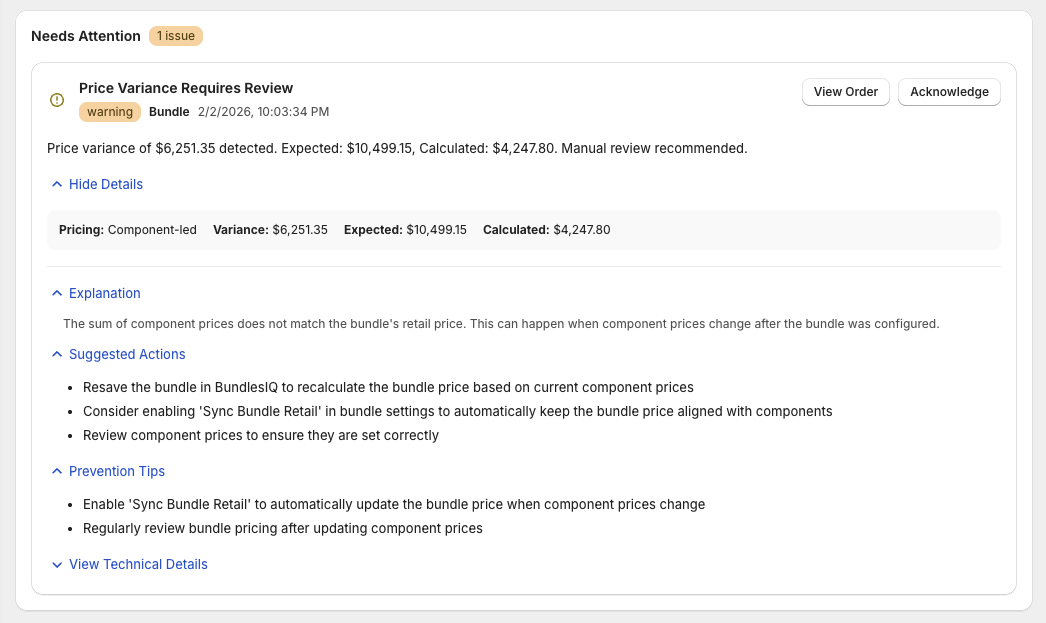
BUNDLE_EXCEEDS_COMPONENTS— Bundle price is higher than the sum of component retails. See Section 2.4PRICE_INCREASE_NOT_POSSIBLE— A component could not be set to the target price because the Order Edit API does not allow price increases. See Section 2.4SPECIFIC_RETAIL_EXCEEDS_CONTEXTUAL— A component's configured retail price in BundlesIQ is higher than its current Shopify price. The Shopify price is used insteadDOLLAR_DISCOUNT_EXCEEDS_RETAIL— A dollar-off discount is larger than the component's retail price. The discount is capped at the retail priceORDER_LEVEL_PROMO_ROUNDING_VARIANCE— A small rounding difference was detected when distributing an order-level promotion. A reconciliation line was added to balance the total
Check if a Shopify discount code was applied
- If the customer used a discount code at checkout, BundlesIQ factors it into the price allocation
- The combined effect of bundle allocation + discount code may produce unexpected-looking per-component prices
Check for rounding variance
- Small differences of 1-10 cents can occur due to rounding during price allocation
- BundlesIQ's variance absorber automatically corrects these, but you may see slightly different discount percentages on individual components
Check the component's current Shopify price
- BundlesIQ uses the component's current Shopify price (contextual price) when calculating discounts
- If a component's price changed after the bundle was configured, the allocation may differ from the preview
4.2 Reporting Does Not Match What I Expect
Symptoms: Shopify Analytics or your reporting tools show unexpected revenue attribution, best-seller rankings, or sales data after implementing BundlesIQ.
Understand the root cause:
Revenue attribution depends entirely on your handling mode:
| Handling Mode | Revenue Attributed To |
|---|---|
| Hybrid | Component SKUs (components carry the price) |
| Operational | Component SKUs (components carry the price) |
| Reporting | Bundle (ghost) SKU (bundle carries the price) |
| Parent-Only (BOM) | Bundle (ghost) SKU (bundle is the only item on the order) |
If you want revenue on the bundle SKU: Use Reporting mode or Parent-Only (BOM) mode
If you want revenue on component SKUs: Use Hybrid or Operational mode
If you already processed orders in the wrong mode:
- Change your handling mode going forward (new orders only)
- Previously processed orders are not retroactively changed
- You may need to manually reconcile historical data in your reporting tools
Best-seller rankings:
- In Hybrid and Operational modes, individual components may appear as top sellers instead of the bundle
- In Reporting and Parent-Only modes, the bundle product appears in best-seller rankings
Channel feeds (Meta, TikTok, Google):
- Some channel integrations read order data to determine product performance
- In Hybrid and Operational modes, channel analytics may attribute sales to component SKUs
- If channel attribution is important, consider Reporting mode
5. Inventory and Availability
5.1 Bundle Shows Out of Stock
Symptoms: Your bundle product shows as "Out of stock" on the storefront, but you believe the components have inventory.
Check these in order:
Check all component inventory levels
- Bundle availability is determined by the least available component
- Open each component product in Shopify Admin and check its inventory at the relevant location
- Even one component at zero makes the entire bundle unavailable
Check the correct location
- If you have multiple Shopify locations, verify inventory at the location that serves online orders
- A component might have stock at one location but not another
Check the ghost SKU's inventory tracking setting
- If inventory tracking is enabled on the ghost SKU, BundlesIQ sets its available quantity based on components
- If inventory tracking is disabled, the product should always show as in stock — check for other reasons it might be hidden (product status, channel availability)
Check "Continue selling when out of stock"
- On the ghost SKU variant: if this is disabled and inventory is 0, Shopify shows "Out of stock"
- If you want to allow purchases even when calculated availability is 0, enable this setting (but be aware of overselling risk)
Check if inventory sync is enabled
- In BundlesIQ > Settings, verify Sync bundle inventory is enabled
- On the specific bundle, verify inventory sync is not disabled at the bundle level
Calculate availability manually
- For each component: divide available quantity by quantity per bundle
- The minimum result is the bundle availability
- Compare with the ghost SKU's current inventory in Shopify
Parent-Only (BOM) mode: check reserved quantities
- If using Parent-Only mode, reserved component inventory reduces the available quantity
- If many orders have reserved but not yet consumed components, the available quantity may be lower than expected
- Check the component's
reservedvs.availablebreakdown in Shopify Admin
5.2 Parent-Only: Component Inventory Not Reserved
Symptoms: You placed an order with a Parent-Only bundle, but the component inventory reserved quantities did not change.
Check these in order:
Was the order processed?
- Check the BundlesIQ Health dashboard for the order status
- If the order is not listed, the webhook may not have been received
Check the reserve timing setting
- If reserve timing is set to
orders/paid, inventory is only reserved after payment is confirmed - If the order is unpaid, switch to
orders/createto reserve immediately, or wait for payment
- If reserve timing is set to
Check the location strategy
- If set to "Fulfillment order location," verify the order has a fulfillment order assigned to a location with component inventory
- If set to "Single location," verify the configured location has sufficient component stock
Check component inventory levels
- If a component has zero
availablestock at the target location, the reservation may fail - Check the Health dashboard for error details — see Section 3.3 for BOM-specific error resolution
- If a component has zero
6. Procedures and Operational Guidance
6.1 Retry vs. Reprocess: Which One Should I Use?
Both options are available on the Health dashboard, but they do different things:
| Retry | Reprocess | |
|---|---|---|
| What it does | Republishes the existing write request directly to the writer service | Deletes stale instances, strips all BIQ_* tags, and re-runs the full pipeline from detection through transformation |
| When to use | Transient errors: rate limits, API timeouts, temporary Shopify issues | Configuration changes: updated bundle, changed handling mode, stale data |
| Speed | Fast — skips detection and transformation, goes straight to Shopify mutation | Slower — full pipeline re-run including webhook-worker detection |
| Attempt limit | Capped at configured max_attempts (default: 5 total including automatic retries) |
Creates a fresh processing instance — attempt counter resets |
| Safe for | Any failed order | Failed or successfully processed orders (force reprocess for already-processed orders) |
Decision guide:
- The order failed with
SHOPIFY_THROTTLED,SHOPIFY_API_ERROR, orSHOPIFY_TIMEOUT→ Retry - The order failed with
DRAFT_CONCURRENT_EDIT→ Retry (the concurrent edit was likely a one-time race condition) - You changed the bundle's configuration (components, pricing, handling mode) → Reprocess
- The order has stale or corrupted transformation data → Reprocess (force mode)
- The order failed with
PRODUCT_NOT_FOUNDorVARIANT_NOT_FOUNDand you fixed the product → Reprocess - You are not sure → Start with Retry. If it fails again with the same error, investigate and then Reprocess after fixing the issue
Parent-Only (BOM) mode note: Reprocessing a Parent-Only order will release any existing inventory reservations before re-running the pipeline. If the order has already been partially fulfilled, use caution.
6.2 How to Tell If an Order Was Processed
There are several ways to confirm whether BundlesIQ has processed an order:
Check the order tags in Shopify Admin
BIQ_READY— The order was successfully processedBIQ_PROCESSING— Processing is currently in progressBIQ_ERROR— Processing failed (check the Health dashboard for details)BIQ_REVERTED— A draft order was reverted to its pre-transformation state
Check the order metafield
- Look for the
bundles_iq.transformation_auditmetafield on the order - This contains the full transformation record including bundle mappings, pricing allocations, and flags
- Look for the
Check the BundlesIQ Health dashboard
- Search for the order by number or ID
- The dashboard shows the processing status, timeline, and any errors or attention items
Check for component line items (Hybrid, Operational, and Reporting modes only)
- In Hybrid mode: bundle at $0, components with prices
- In Operational mode: bundle removed, only components remain
- In Reporting mode: bundle at original price, components at $0
- In Parent-Only mode: no visible changes on the order — use the Health dashboard or
BIQ_READYtag instead
6.3 Reprocessing and Reverting Orders
BundlesIQ provides admin tools to reprocess failed orders and revert draft order transformations. These tools are accessible from the Shopify Admin order/draft order detail page via the Bundle Tools action menu.
Reprocessing (Orders and Draft Orders)
Reprocessing re-runs the full bundle transformation pipeline for an order. Use this when:
- Processing failed and the error has been resolved (e.g., a missing variant was re-added)
- The bundle configuration was changed and you want to re-transform an order
- Stale processing state needs to be cleared
See Section 6.1 for guidance on when to retry vs. reprocess.
How to reprocess:
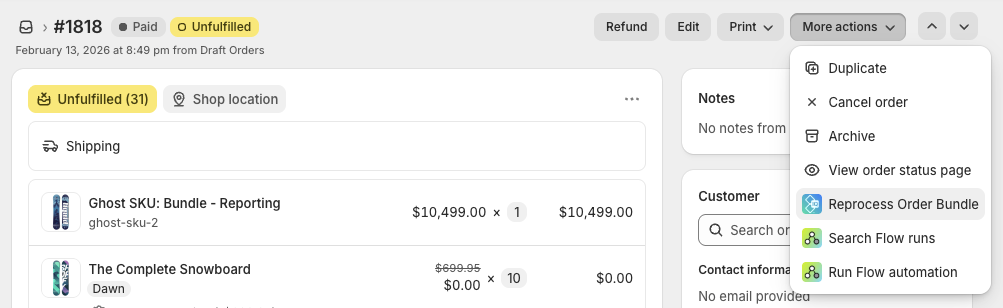
- Open the order or draft order in Shopify Admin
- Click the Bundle Tools action (in the "More actions" menu)
- Click Reprocess Bundle
- If the order was already successfully processed, BundlesIQ will warn you and offer a Force Reprocess option
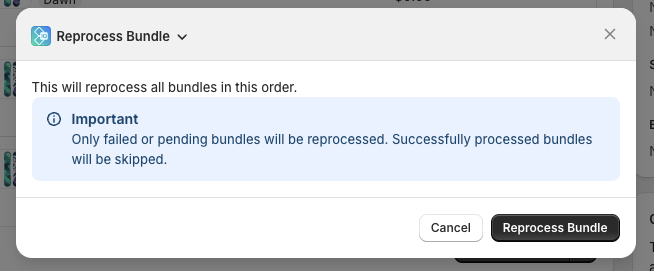
What happens during reprocessing:
- Existing bundle instances in BundlesIQ are cancelled and deleted
- All
BIQ_*tags are stripped from the order (includingBIQ_PROCESSING,BIQ_READY,BIQ_ERROR, andBIQ_REVERTED) - If the bundle metafield already exists on the order, it is deleted (force mode only)
- The full order data is fetched from Shopify and published for processing
- The webhook-worker detects bundles and processes them as if the order were new
Force Reprocess is a safety escalation. It deletes existing processed instances and metafields before re-running the pipeline. Use it only when you are certain the previous transformation needs to be replaced.
Parent-Only (BOM) mode: Reprocessing releases any existing inventory reservations before re-running the pipeline. If the order has already been partially fulfilled, some reservations may have already been consumed — use caution and verify inventory levels after reprocessing.
Reverting (Draft Orders Only)
Reverting undoes a bundle transformation on a draft order, restoring it to its pre-BundlesIQ state. This is only available for draft orders — regular orders cannot be reverted because the Order Edit API does not support removing previously added line items.
How to revert:
- Open the draft order in Shopify Admin
- Click the Bundle Tools action
- Choose one of:
- Revert Only — Removes all bundle components and restores the original ghost SKU lines. The draft order is left in its pre-transformation state and will not be re-processed (a
BIQ_REVERTEDtag is applied to prevent automatic re-transformation) - Revert & Reprocess — Reverts the draft order and then immediately re-runs the full processing pipeline. All
BIQ_*tags are stripped and fresh processing begins
- Revert Only — Removes all bundle components and restores the original ghost SKU lines. The draft order is left in its pre-transformation state and will not be re-processed (a
What reverting does by handling mode:
| Line type | Action |
|---|---|
| Component lines (added by BundlesIQ) | Removed |
| Adjustment lines (e.g., Bundle Allocation) | Removed |
| Hybrid bundle lines (with "Bundle transformation" discount) | Kept, discount removed (restored to original price) |
| Operational bundle lines (quantity was set to 0) | Restored — ghost SKU variant is re-added with original quantity |
| Reporting bundle lines | Kept as-is (they were never modified) |
| Non-bundle lines | Kept as-is |
The BIQ_REVERTED Tag
When a draft order is reverted (without reprocessing), BundlesIQ applies the BIQ_REVERTED tag. This tag tells the webhook-worker to skip the draft order when the draft_orders/update webhook fires (which Shopify sends in response to the revert mutation). Without this tag, the worker would immediately re-transform the draft order.
- Revert Only:
BIQ_REVERTEDtag stays — prevents automatic re-transformation - Revert & Reprocess: All
BIQ_*tags are stripped — the intentional re-publish triggers clean reprocessing
7. Frequently Asked Questions
7.1 How Long Does Processing Take?
BundlesIQ processes orders asynchronously after receiving the webhook from Shopify:
| Scenario | Expected Time |
|---|---|
| Single bundle, few components | 2-5 seconds |
| Multiple bundles on one order | 5-15 seconds |
| High-volume periods | Up to 30 seconds |
| Failed + automatic retry | Cooldown period (default: 5 minutes) + processing time |
If 3PL protection is enabled, the order is held until processing completes, so timing variations do not cause fulfillment issues.
7.2 Do Line Item Properties Transfer to Components?
BundlesIQ does not currently transfer line item properties (such as gift messages, engraving text, or custom fields) from the ghost SKU line item to component line items.
Workaround: If you need line item properties on components, you can:
- Add the properties manually after BundlesIQ processes the order
- Use a Shopify Flow to copy properties from the original line to component lines
- Contact support to discuss your specific use case
7.3 Can Customers Still Apply Discount Codes?
Yes. Customers can apply Shopify discount codes at checkout as normal. BundlesIQ detects any applied discounts and factors them into the component price allocation during transformation.
How it works:
- The discount code is applied to the ghost SKU at checkout
- BundlesIQ detects the discount and its type (percentage, fixed amount, BOGO, etc.)
- During transformation, BundlesIQ distributes both the bundle allocation discount and the checkout discount across components
Limitations:
- Shopify automatic discounts work the same way — BundlesIQ factors them in
- Discount stacking behavior is governed by Shopify's rules (e.g., only one discount code per order unless your store supports stacking)
7.4 Does BundlesIQ Work with Shopify POS?
Yes. BundlesIQ processes orders from all Shopify channels, including POS. When a POS order contains a bundle ghost SKU, it is processed the same way as an online order.
Note: BundlesIQ does not provide a POS-specific UI. Staff using POS should add the ghost SKU product to the sale; BundlesIQ transforms the order after it is created.
7.5 What Happens If I Change My Handling Mode After Processing Orders?
The mode change applies to new orders only. Previously processed orders are not retroactively modified. See Section 1.7 for details.
Per-bundle overrides: You can set different handling modes per bundle. This means you can run Operational mode for your wholesale bundles and Reporting mode for your DTC bundles simultaneously.
7.6 Why Does the Customer See Something Different on Their Order Confirmation Email?
The order confirmation email is sent by Shopify immediately after order creation — before BundlesIQ receives the webhook and processes the order. This means the email shows the original, pre-transformation order (just the bundle product at the purchase price).
After processing (typically 2-15 seconds later), the order in Shopify Admin shows the transformed version. If the customer checks their order status page or account history after processing completes, they see the transformed order.
See Section 1.6 for the full breakdown.
Tip: If you want the customer-facing order to match the email as closely as possible, use Reporting mode or Parent-Only mode — these preserve the bundle name and price on the order, so the transformed order looks very similar to the email.
7.7 Multi-Bundle Orders: What to Expect
When a single order contains multiple bundles, BundlesIQ processes all bundles in a single transformation:
- All bundles on the order are detected during the initial webhook processing
- Each bundle is transformed independently according to its own handling mode (if per-bundle overrides are set)
- Component lines are added for each bundle — if two bundles share a component variant, those component lines appear separately (one per bundle)
- Processing time increases slightly with multiple bundles (5-15 seconds typical)
Mixed handling modes on one order:
If one bundle is set to Hybrid mode and another to Operational mode, each bundle's transformation follows its own mode rules. The order may show a mix of $0 bundle lines, removed bundle lines, and priced component lines.
Tip: For simplicity, we recommend using the same handling mode for all bundles on a single store. Mixed modes on one order are supported but can create confusing-looking orders.
7.8 Processing Takes Longer Than Expected
Symptoms: Orders are not transformed within the expected 2-15 second window.
Possible causes:
- High webhook volume — During sales events or bulk order imports, webhook processing may queue
- Shopify API throttling — If your store is hitting Shopify's API rate limits, BundlesIQ waits and retries
- Complex bundles — Bundles with many components or multiple bundles on a single order take longer
- Retry in progress — If the initial processing failed, BundlesIQ may be waiting for the cooldown period before retrying
What to do:
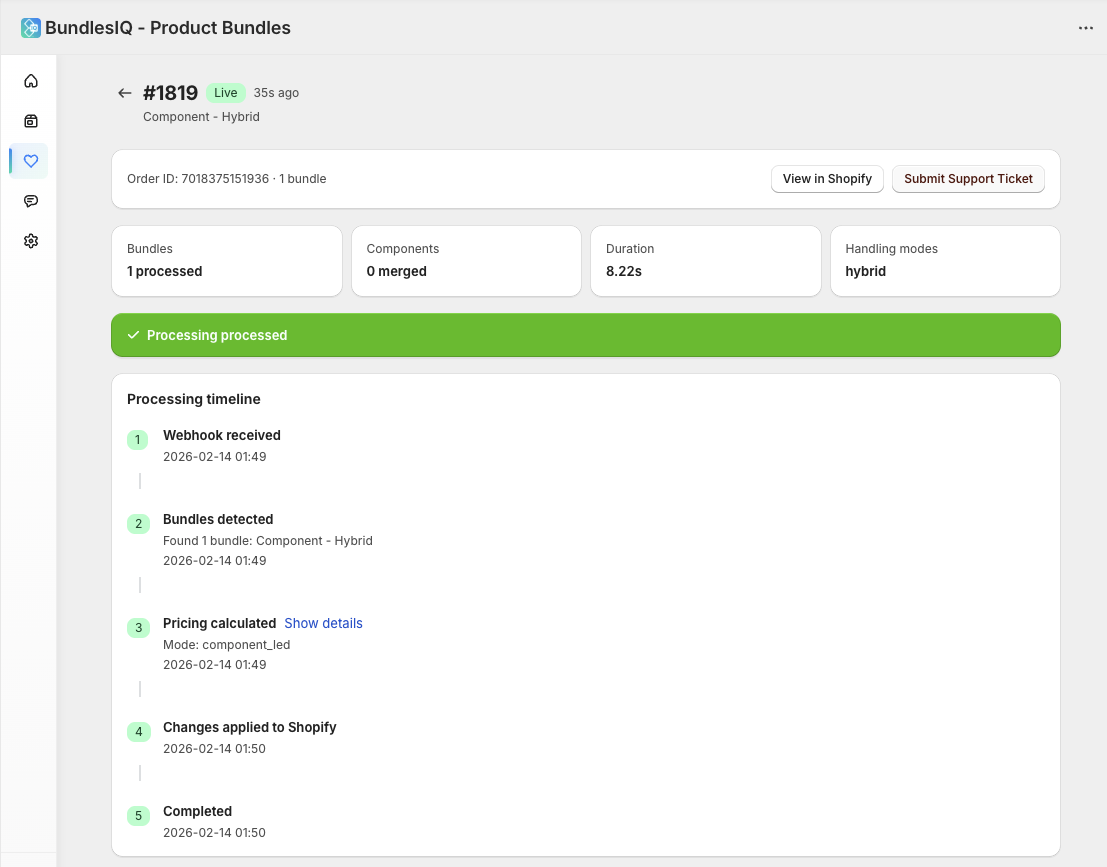
- Check the Health dashboard for the order's status
- If the order shows "Pending" or "Processing," wait a few minutes
- If the order shows "Failed," check the error message and resolve the issue
- If 3PL protection is enabled, the order remains held until processing completes — no fulfillment risk
7.9 Launch Week Common Questions
If you just went live with BundlesIQ, here are the most common situations during the first week:
"My 3PL imported orders before BundlesIQ processed them"
If your 3PL pulls orders immediately after creation (before BundlesIQ's 2-15 second processing window), the 3PL may have imported the pre-transformation order.
Solution: Enable 3PL protection (fulfillment hold) in BundlesIQ > Settings. This places a fulfillment hold on orders until processing completes, preventing premature 3PL import. The hold is released automatically after successful transformation.
"My warehouse is confused by $0 component lines"
If using Reporting mode, component lines appear at $0. Some warehouse staff or 3PLs interpret this as "free items" or are confused by the zero-dollar lines.
Solutions:
- Switch to Operational mode if the warehouse only needs real SKUs and prices (no bundle reference needed)
- Switch to Hybrid mode if you want the bundle reference visible but components priced
- Train warehouse staff that $0 lines in Reporting mode are fulfillment-only items — the bundle line carries the total price
- Use the bundle header feature in Writer Options to add grouping labels
"Some orders were processed but others were not"
Check these common launch-week causes:
- Processing scope: Is it set to "All orders" or "Tagged only"? If tagged only, verify the tags
- Bundle status: Are all bundles set to Active? Draft bundles are not processed
- Order timing: Orders placed before BundlesIQ was installed/enabled are not retroactively processed
- Ghost SKU mismatch: Verify the ghost SKU variant ID in the bundle matches the actual Shopify product variant
"I launched with the wrong handling mode"
No problem — change the mode in BundlesIQ > Settings (or per-bundle override). The new mode applies to all new orders immediately. Previously processed orders are not affected. If you need to re-transform specific draft orders, use Revert & Reprocess.