
Storefront Blocks
BundlesIQ includes optional theme app blocks that show a bundle's components to shoppers on your storefront. There are two blocks:
BIQ: What's Included— displays the bundle's component list on the product page.BIQ: Cart Contents— displays the bundle's components in the cart.
This guide explains how to add each block to your theme using the Shopify theme editor.
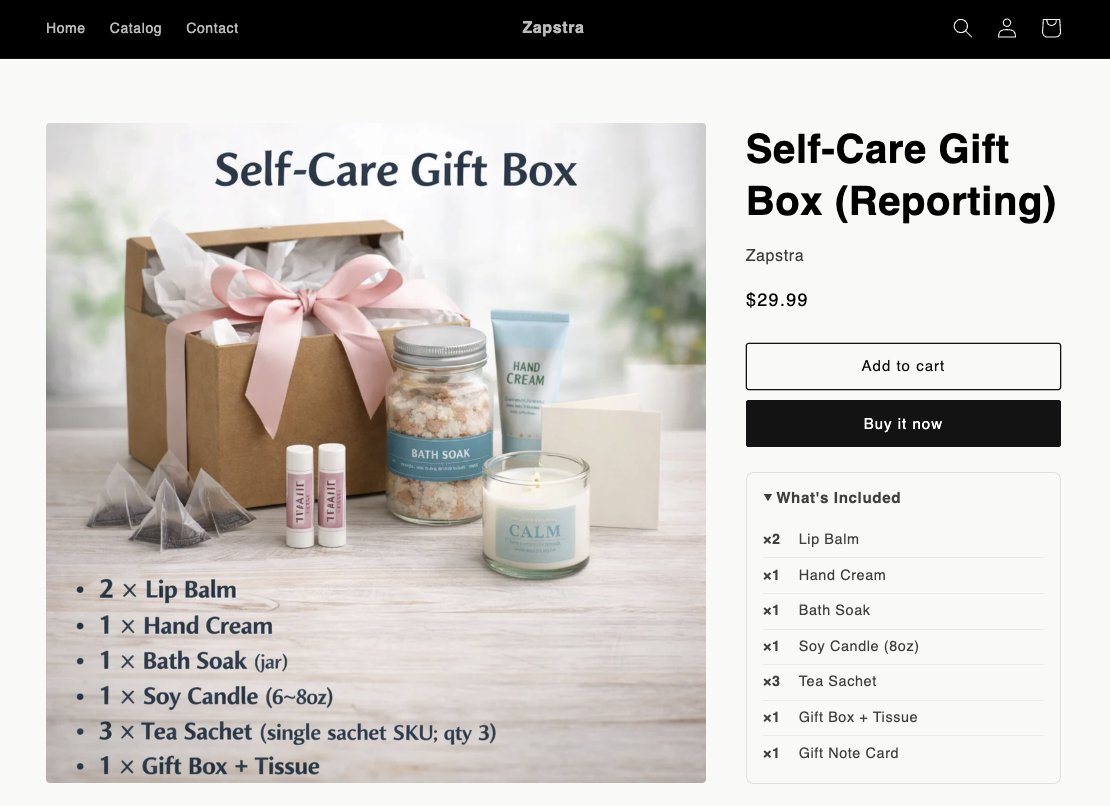
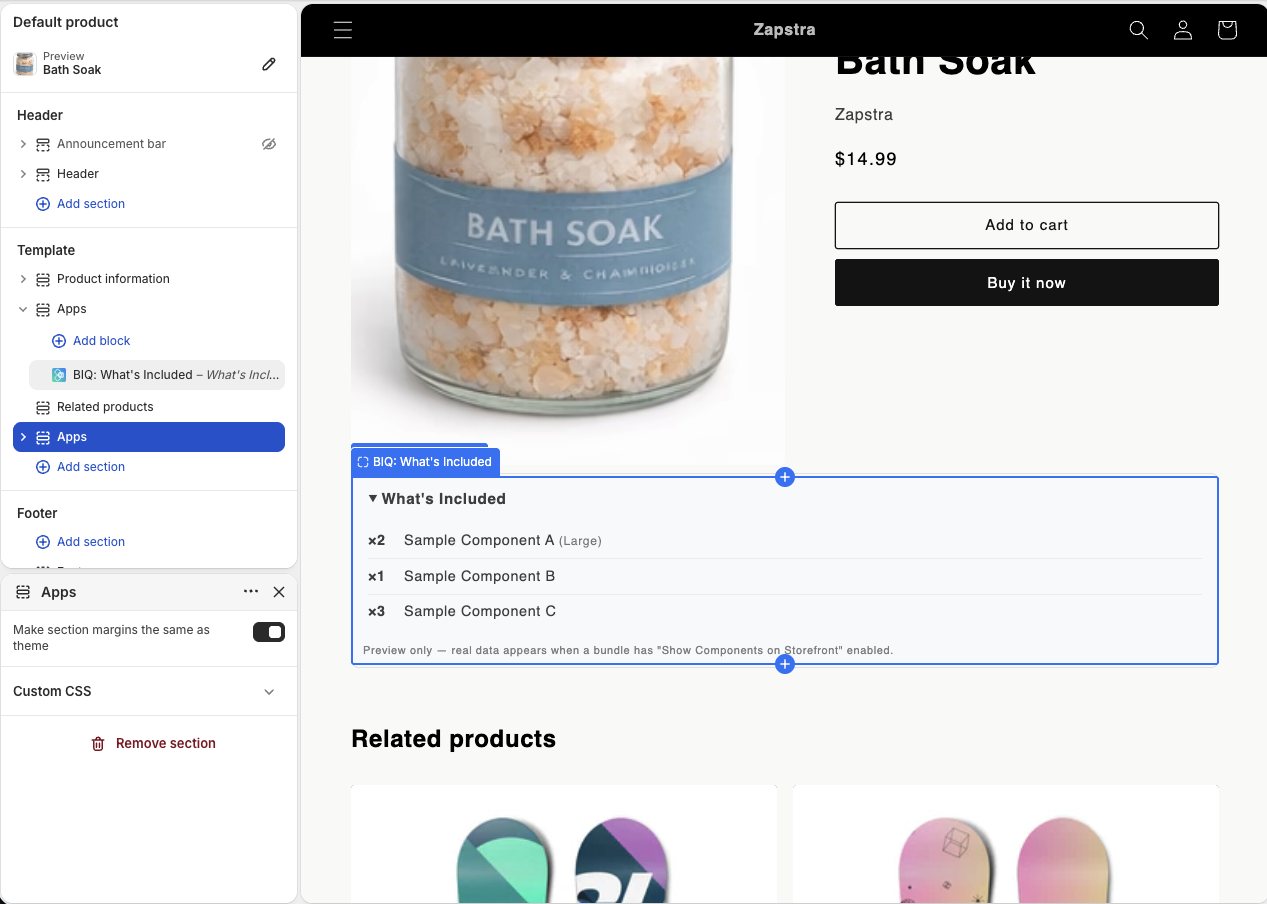
Example: the BIQ: What's Included block on a live product page, showing each component and quantity.
What You Will Accomplish
You will add the BundlesIQ storefront blocks to your product page and cart so customers can see exactly what's inside a bundle before and during checkout.
Before You Start
- Enable the storefront display on the bundle. Turn on Show Components on Storefront in the bundle's Advanced Settings. See Create and Manage Bundles.
- Use an Online Store 2.0 theme. App blocks require a section-based (OS 2.0) theme. Most current Shopify themes qualify.
Display only. These blocks only show bundle information to shoppers. They don't change how the cart or order is processed — order transformation happens after checkout. See How BundlesIQ Works.
Open the Theme Editor
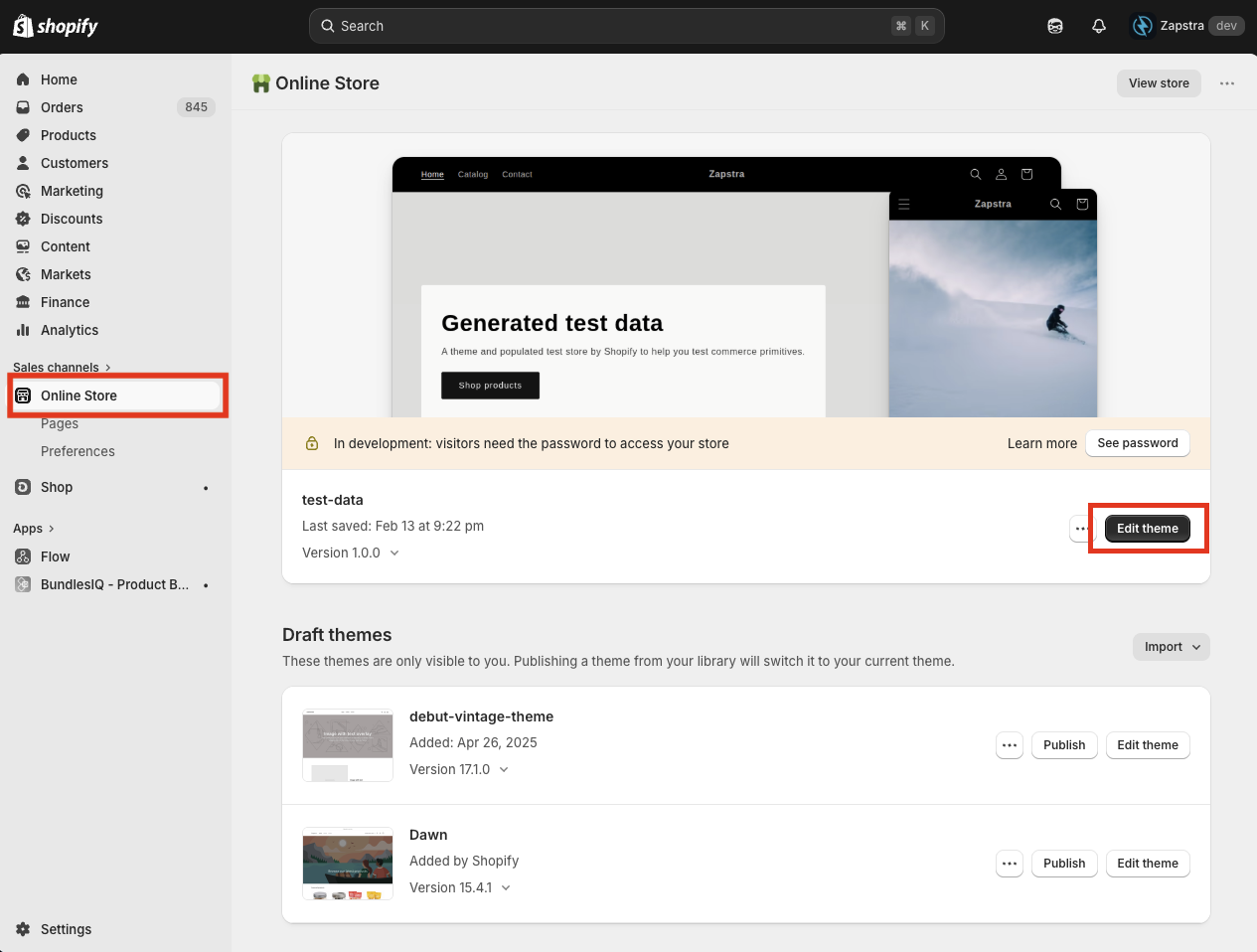
In your Shopify admin, go to Online Store in the left-hand menu, then click Edit theme on the theme you want to update.
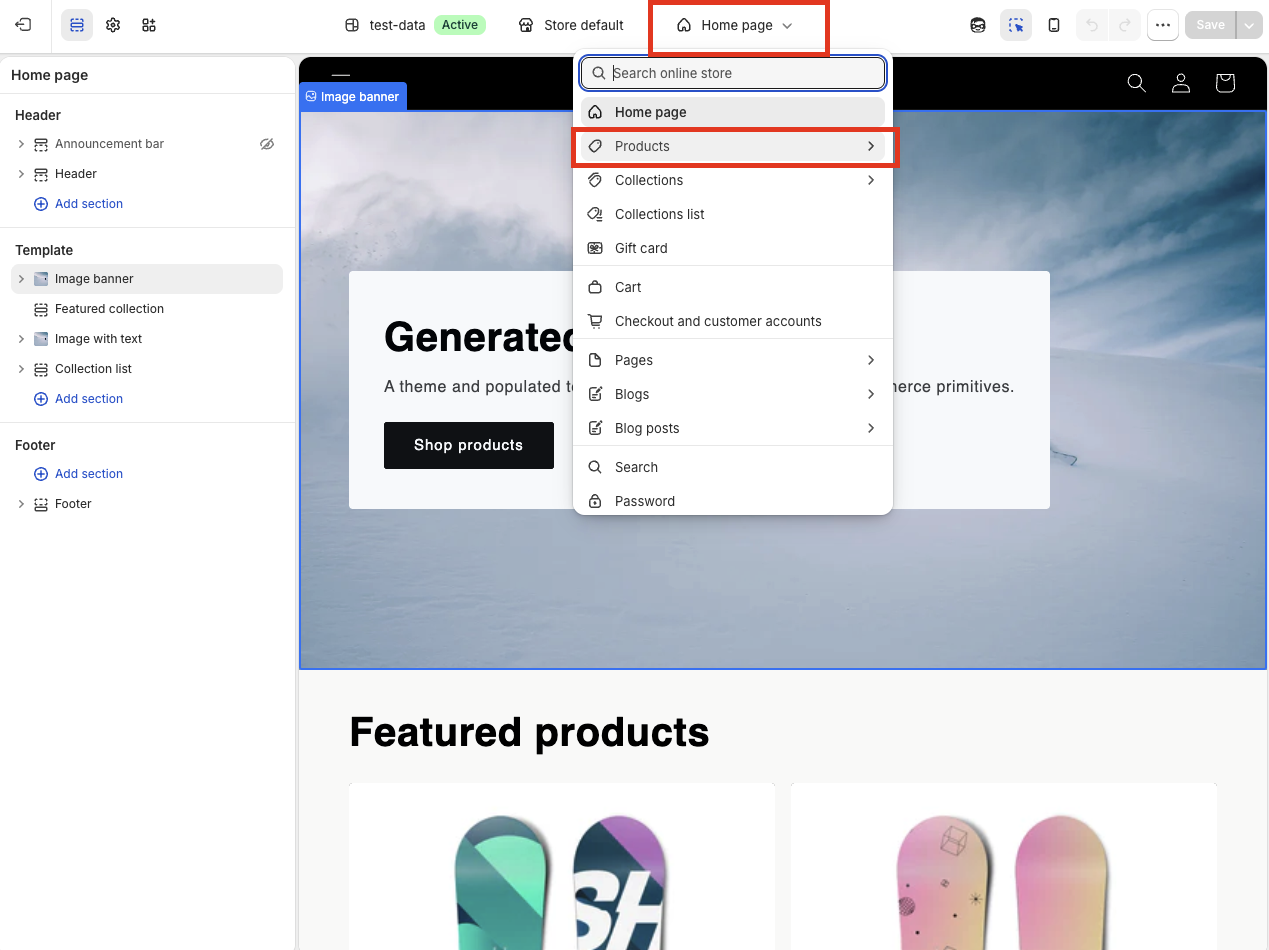
Once the theme editor is open, use the template dropdown at the top center to switch to the page you want to edit — for example, Products or Cart.
Add the Product Page Block
- In the template dropdown, choose Products (the default product template).
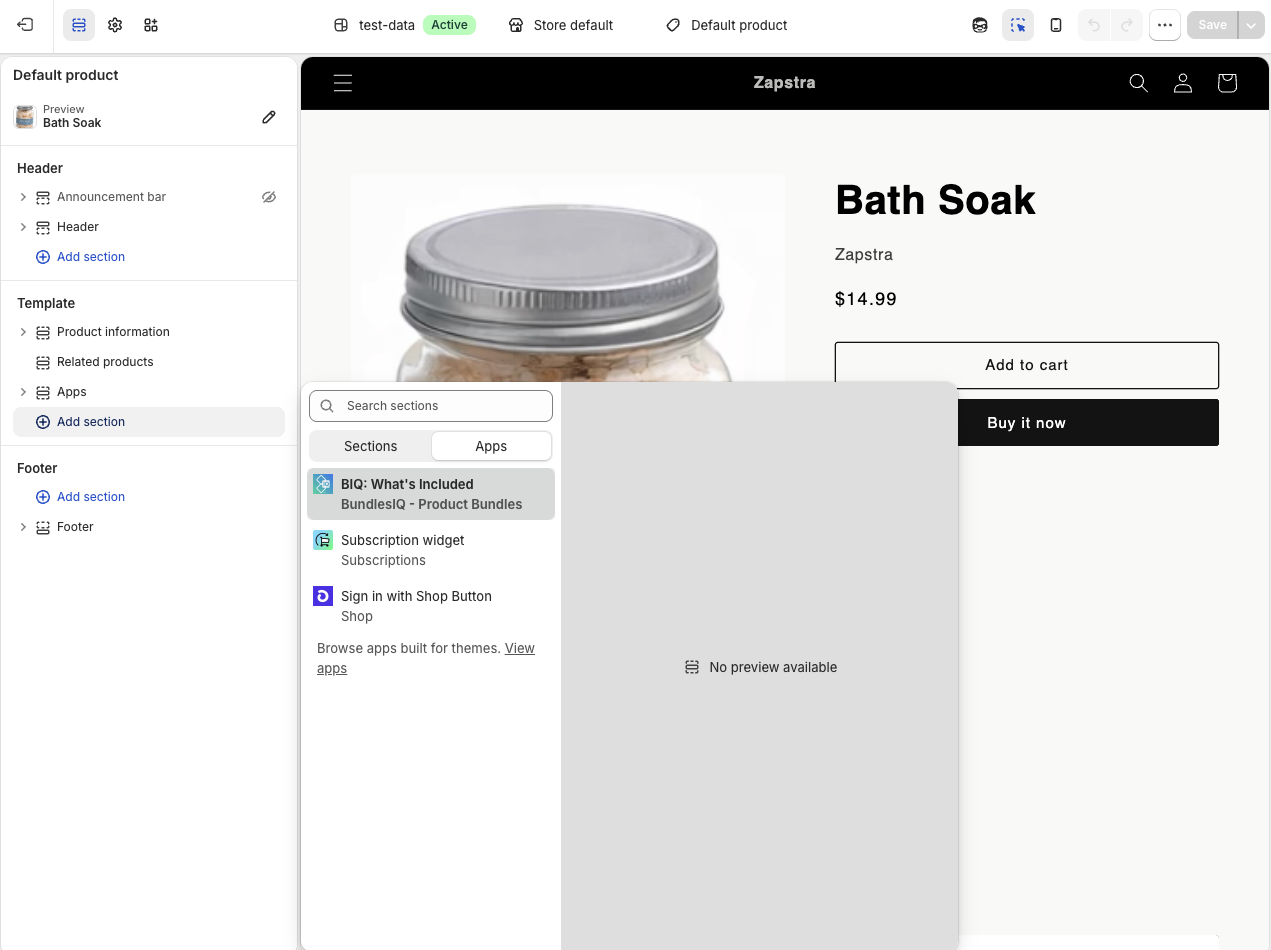
- In the left panel under Template, click Add section.
- In the picker that opens, switch from the Sections tab to the Apps tab. Under Apps you'll find
BIQ: What's Included(listed under BundlesIQ - Product Bundles). Click it to add the block.
- Drag the section to the position you want, then click Save.
Once placed, customers see the bundle's component list on the product page:
Add the Cart Block
- In the template dropdown, choose Cart.
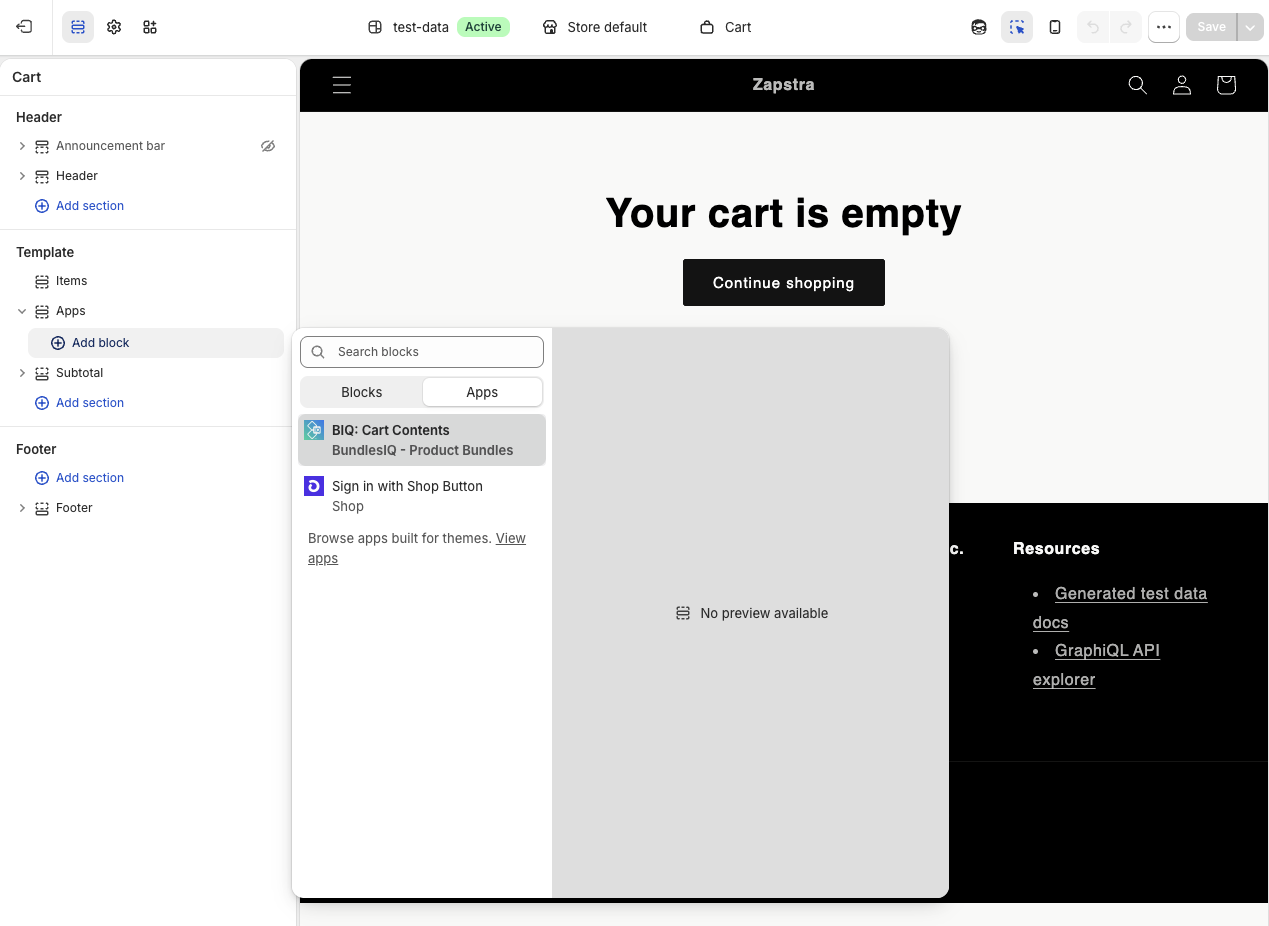
- In the left panel under Template, find the Apps area and click Add block.
- In the picker that opens, switch to the Apps tab. Under Apps you'll find
BIQ: Cart Contents(listed under BundlesIQ - Product Bundles). Click it to add the block.
- Drag the block to the position you want, then click Save.
You can adjust the block's Section heading (e.g. "Bundle Details") and Row heading (e.g. "What's Included") in the block settings on the left. Once placed, customers see the bundle's components in the cart:
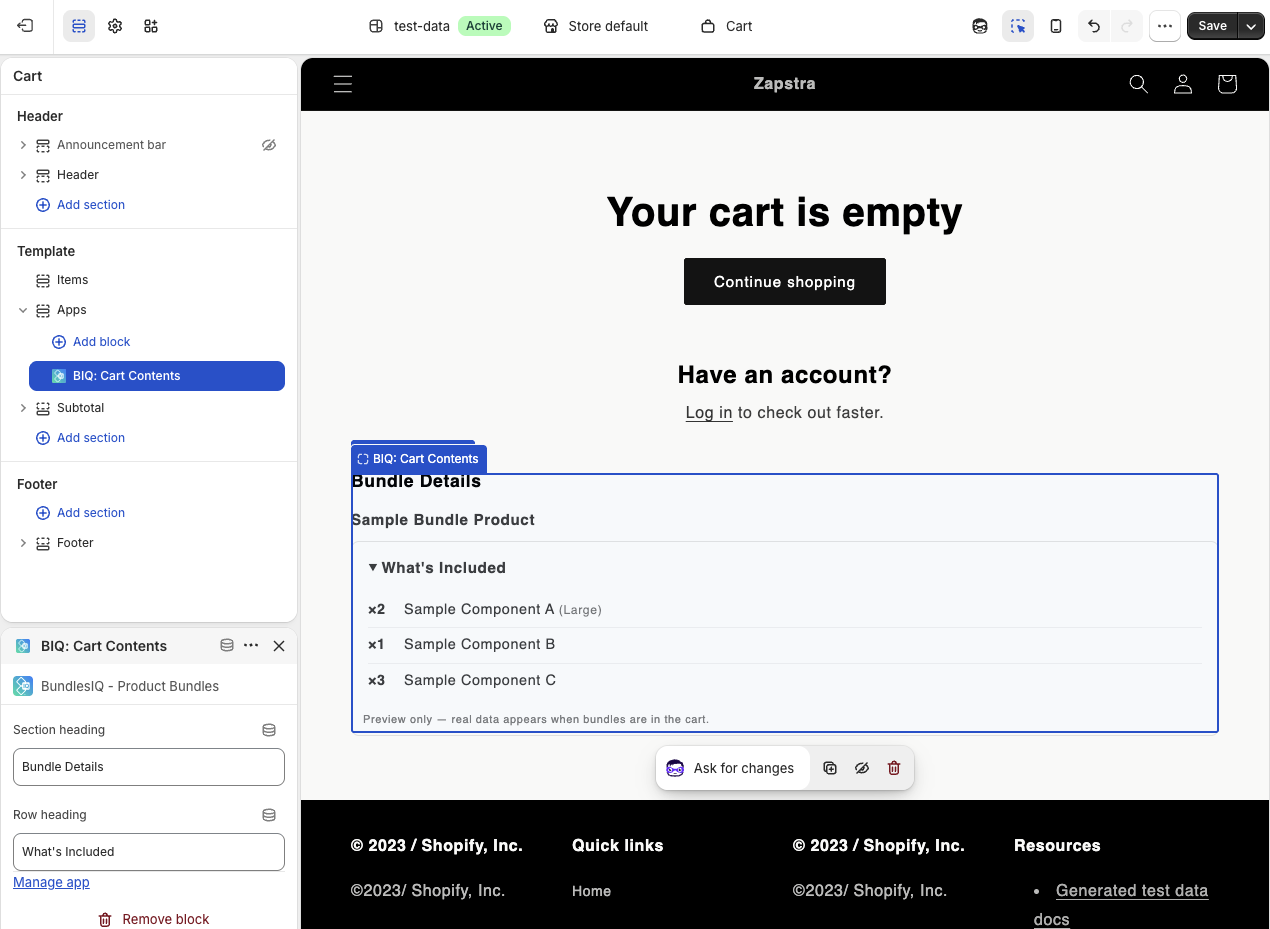
In the editor, the block shows sample placeholder data. Real component data appears when an actual bundle is in the cart.
Repositioning or Removing a Block
- Reposition: In the theme editor, drag the section/block within its template, then click Save.
- Remove: Select the section/block and click Remove section (product page) or Remove block (cart), then click Save. Removing the block only hides the storefront display — it does not affect bundle processing.
If the Block Doesn't Appear
- Make sure you're editing an Online Store 2.0 theme (app blocks aren't available in older vintage themes).
- Confirm Show Components on Storefront is enabled on the bundle.
- Confirm you're on the correct template in the top dropdown (the product block lives on the Products template; the cart block lives on the Cart template).
- After adding a block, remember to click Save — unsaved blocks won't show on the live storefront.