
How Orders Look in Each Handling Mode
This guide provides a detailed comparison of what orders look like after BundlesIQ processes them in each handling mode, including the impact on invoices, packing slips, reporting, and downstream systems.
What You Will Accomplish
You will see exactly how each handling mode transforms an order, understand the reporting and fulfillment implications, and know what to expect in your Shopify Admin.
Side-by-Side Comparison
For a bundle called "Summer Essentials" priced at $99.00 containing:
- Sunglasses ($50 retail)
- Beach Towel ($40 retail)
- Sunscreen ($30 retail)
Using bundle-led pricing with uniform 17.5% discount:
Hybrid Mode
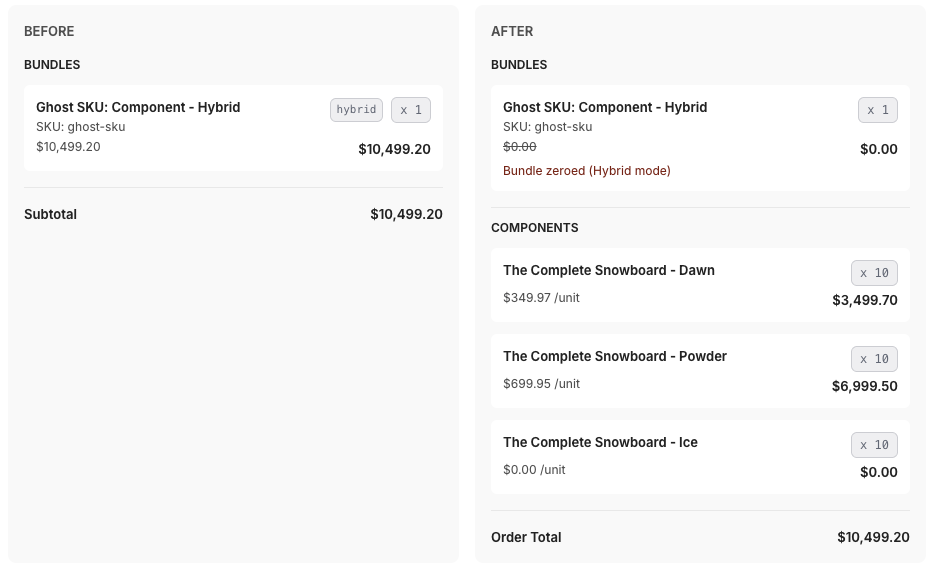
| Line Item | Qty | Price | Discount |
|---|---|---|---|
| Summer Essentials Bundle | 1 | $0.00 | Set to $0 |
| Sunglasses | 1 | $50.00 | -$8.75 (17.5%) = $41.25 |
| Beach Towel | 1 | $40.00 | -$7.00 (17.5%) = $33.00 |
| Sunscreen | 1 | $30.00 | -$5.25 (17.5%) = $24.75 |
| Total | $99.00 |
Operational Mode
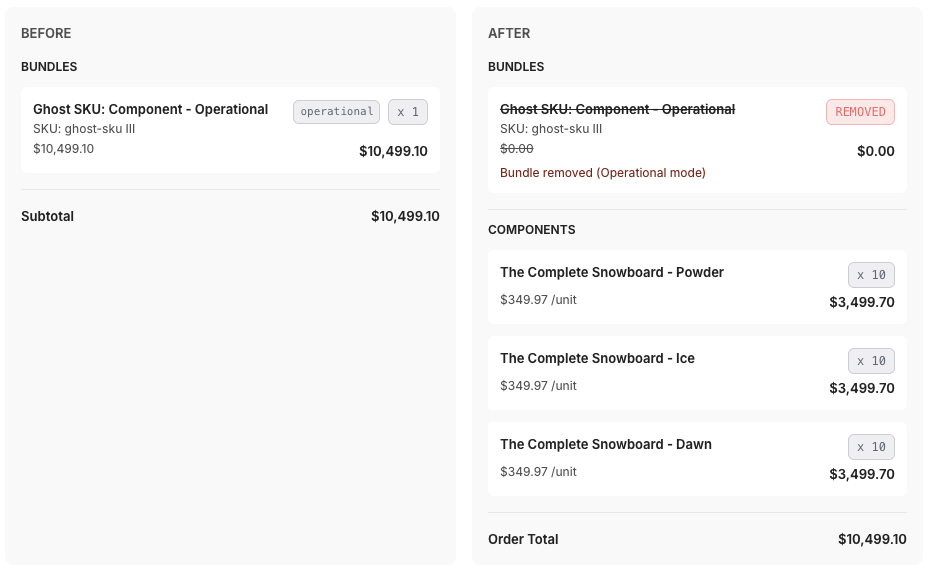
| Line Item | Qty | Price | Discount |
|---|---|---|---|
| — | Removed (qty set to 0) | ||
| Sunglasses | 1 | $50.00 | -$8.75 (17.5%) = $41.25 |
| Beach Towel | 1 | $40.00 | -$7.00 (17.5%) = $33.00 |
| Sunscreen | 1 | $30.00 | -$5.25 (17.5%) = $24.75 |
| Total | $99.00 |
Reporting Mode
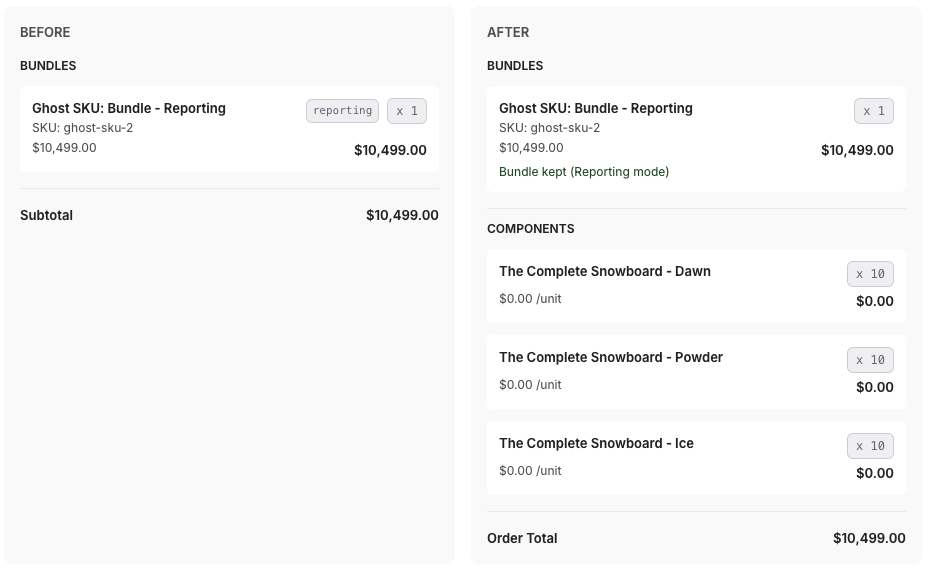
| Line Item | Qty | Price | Discount |
|---|---|---|---|
| Summer Essentials Bundle | 1 | $99.00 | Unchanged |
| Sunglasses | 1 | $50.00 | -$50.00 (100%) = $0.00 |
| Beach Towel | 1 | $40.00 | -$40.00 (100%) = $0.00 |
| Sunscreen | 1 | $30.00 | -$30.00 (100%) = $0.00 |
| Total | $99.00 |
Parent-Only (BOM) Mode
| Line Item | Qty | Price | Discount |
|---|---|---|---|
| Summer Essentials Bundle | 1 | $99.00 | Unchanged |
| (No component line items on the order) | |||
| Total | $99.00 |
In Parent-Only mode, no order editing occurs. Component inventory is managed behind the scenes:
- On order creation or payment (depending on reserve timing setting): component stock moves from
availabletoreserved - On fulfillment: reserved stock is consumed (decremented)
- On cancellation: reserved stock is released back to
available
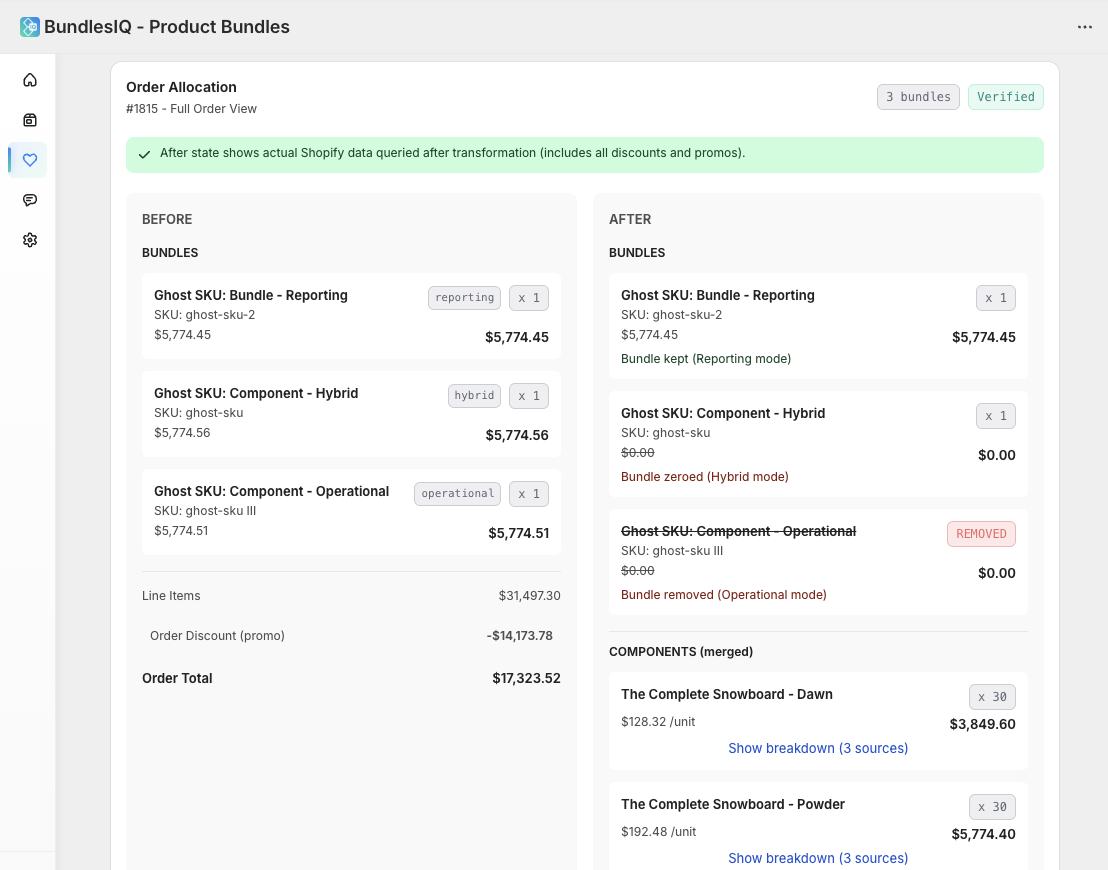
Multi-Bundle Order (Mixed Modes)
When a single order contains multiple bundles using different handling modes, BundlesIQ processes each bundle according to its configured mode. The order allocation view shows the full before-and-after transformation:
Impact on Invoices and Packing Slips
| Aspect | Hybrid | Operational | Reporting | Parent-Only (BOM) |
|---|---|---|---|---|
| Invoice shows bundle name | Yes (at $0) | No | Yes (at full price) | Yes (at full price) |
| Invoice shows component prices | Yes | Yes | No (all $0) | No (no components on order) |
| Packing slip shows components | Yes | Yes | Yes | No (only the bundle SKU) |
| Components identifiable as part of a bundle | Yes (bundle label line visible) | Via order tags/metafields only | Yes (grouped under bundle) | Via BundlesIQ app or order metafield only |
Identifying Bundle Components on Packing Slips
In Hybrid and Reporting modes, the bundle line item appears alongside the components, making it clear which items belong to the bundle.
In Parent-Only (BOM) mode, no components appear on the packing slip at all — only the bundle SKU. Your warehouse should use the bundle's bill of materials (available in the BundlesIQ app) or a printed BOM sheet to know which items to pick or assemble.
In Operational mode, the bundle line is removed. To identify components as part of a bundle on packing slips, you can:
- Use the
BIQ_READYtag to identify bundle-processed orders - Check the
bundles_iq.transformation_auditorder metafield for the full bundle mapping - Use BundlesIQ's bundle header feature (in Writer Options) to add grouping headers to the order
Impact on Revenue Reporting
| Report | Hybrid | Operational | Reporting | Parent-Only (BOM) |
|---|---|---|---|---|
| Revenue attributed to | Component SKUs | Component SKUs | Bundle (ghost) SKU | Bundle (ghost) SKU |
| Best-seller rankings | Reflect component products | Reflect component products | Reflect bundle product | Reflect bundle product |
| Shopify Analytics "Sales by product" | Components get credit | Components get credit | Bundle gets credit | Bundle gets credit |
| Collection performance | Based on components | Based on components | Based on bundle | Based on bundle |
If you need bundle-level revenue reporting in Shopify Analytics, use Reporting mode or Parent-Only mode. If you need SKU-level reporting, use Hybrid or Operational mode.
Impact on Fulfillment
| Aspect | Hybrid | Operational | Reporting | Parent-Only (BOM) |
|---|---|---|---|---|
| Items to pick/pack | Component line items | Component line items | Component line items | Bundle line item only (use BOM for picking) |
| Bundle parent visible to warehouse | Yes (as $0 line) | No | Yes (as priced line) | Yes (only item on the order) |
| 3PL sees real SKUs | Yes | Yes | Yes | No (only the ghost SKU) |
| Potential 3PL confusion | Low (bundle at $0 is obvious) | None (no bundle reference) | Medium ($0 components may confuse some 3PLs) | High if 3PL expects individual SKUs — use only with internal or BOM-aware warehouses |
Impact on Discount Codes
If a customer applies a Shopify discount code at checkout:
- The discount is applied to the original bundle line item at checkout (before BundlesIQ processes the order)
- BundlesIQ detects the applied promo discount and factors it into the component price calculations
- In Hybrid and Operational modes, the promo discount is distributed across components along with the bundle allocation discount
- In Reporting mode, the promo discount stays on the bundle line and components remain at $0
- In Parent-Only (BOM) mode, the promo discount stays on the bundle line as-is (no component lines exist to distribute to)
Impact on Taxes
Tax calculation depends on your Shopify tax settings:
- Tax-exclusive stores — Taxes are calculated on the final line item prices after discounts. Each component is taxed at its allocated price
- Tax-inclusive stores — BundlesIQ preserves the tax-inclusive pricing during allocation
In all modes, the total tax collected should match what the customer was charged at checkout, because BundlesIQ preserves the order total.
What the Customer Sees
| Touchpoint | What the Customer Sees |
|---|---|
| Checkout | The original bundle product at the bundle price (transformation has not happened yet) |
| Order confirmation email | Usually the original bundle product (email is sent before transformation in most cases) |
| Order status page | The transformed order (if they check after processing completes) |
| Account order history | The transformed order |
In Reporting mode and Parent-Only mode, the customer sees the bundle name and price in their order history, which is the most familiar experience. In Hybrid and Operational modes, the customer sees component line items.