
How BundlesIQ Works
BundlesIQ expands bundle variants into their component variants (depending on your configured handling mode) so your storefront can sell a single “bundle item” while your operations and reporting reflect the underlying items.
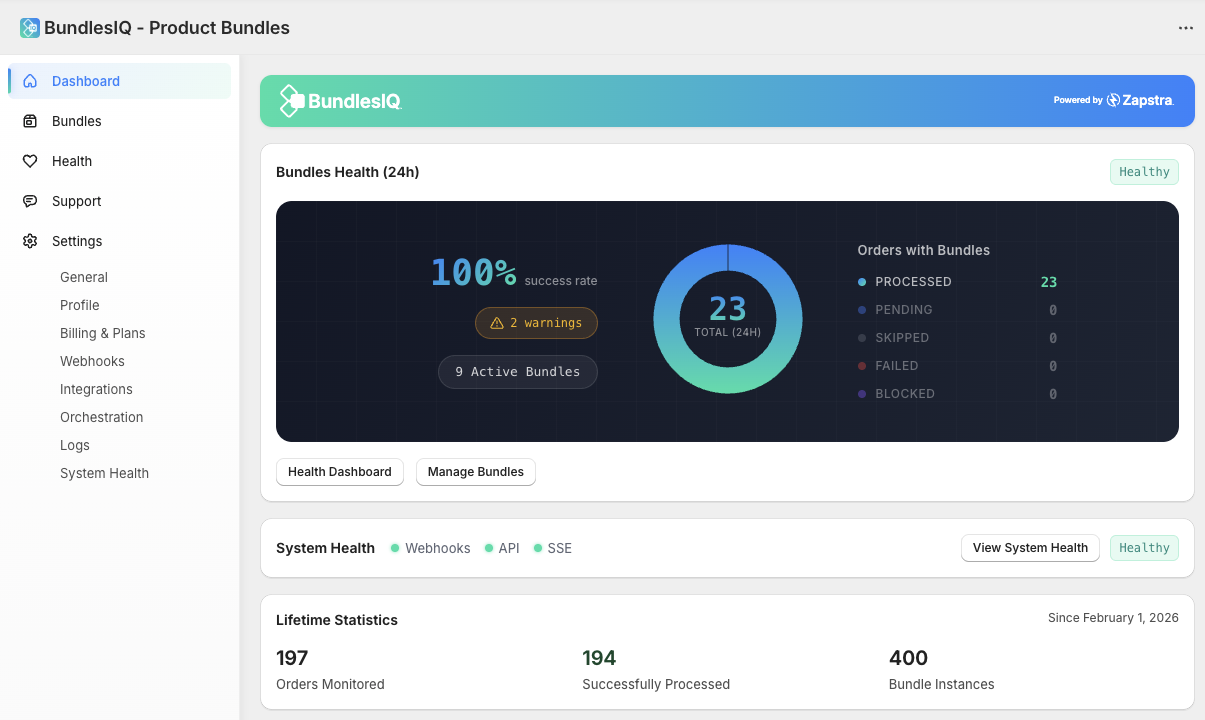
Terminology (important)
BundlesIQ works variant-to-variant:
- Product: A Shopify product container (what merchants often navigate in Admin)
- Variant: The purchasable SKU-level item (this is what BundlesIQ maps and detects)
- Ghost SKU variant: The bundle variant customers buy (the “parent” line item)
- Component variants: The variant(s) contained in the bundle, each with a quantity
When this document says “product,” it’s referring to how Shopify Admin is organized. The actual detection and mapping is always done using variant IDs.
The Ghost SKU Model
BundlesIQ uses a ghost SKU variant approach to bundling:
- You choose the variant customers will purchase as the bundle:
- Select an existing Shopify variant, or
- Create the bundle item inside BundlesIQ (faster, but more limited than Shopify Admin)
- In BundlesIQ, you define the bundle by linking that ghost SKU variant to one or more component variants (plus quantities)
- When a customer purchases the ghost SKU variant, BundlesIQ detects it and processes the order based on your handling mode (Operational, Hybrid, Reporting, or Parent-Only/BOM)
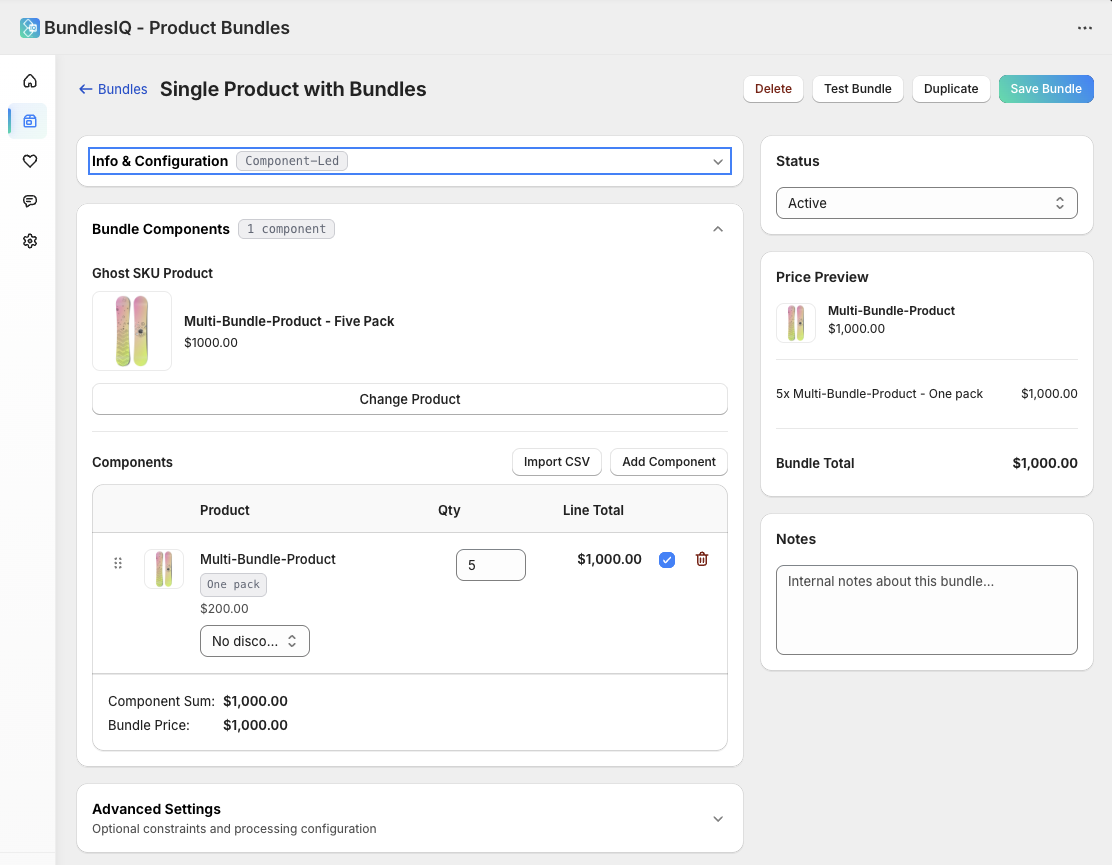
Concrete example (variant-to-variant)
Product A: “Apple”
- Variant A (standard): “Single”
- Variant B (bundle): “Two-Pack” → components: Variant A × 2
- Variant C (bundle): “Three-Pack” → components: Variant A × 3
- Variant D (bundle): “Four-Pack” → components: Variant A × 4
- Variant E (bundle): “Five-Pack” → components: Variant A × 5
The bundle looks like a “product” in Shopify Admin, but BundlesIQ is mapping and processing these as variants.
Why Ghost SKU Variants
Ghost SKU variants keep the storefront simple while letting the back-office stay precise:
- Customers see one item with one price
- Ops/Warehouse can work with the actual pick/pack items (when your mode adds components to the order)
- Accounting/Reporting can track revenue at the level you choose (bundle-level, component-level, or both)
- Inventory control depends on handling mode:
- In modes where components are on the order, Shopify’s normal inventory flow applies to component variants
- In Parent-Only (BOM) mode, BundlesIQ can optionally manage component inventory via inventory states (more below)
Handling Modes (What Changes on the Order)
BundlesIQ supports multiple handling modes. The mode determines what appears on the final order:
| Handling Mode | Ghost SKU variant on order? | Component variants on order? | Typical use case |
|---|---|---|---|
| Operational | ❌ Removed | ✅ Yes (priced) | Warehousing + operational reality (pick/pack) |
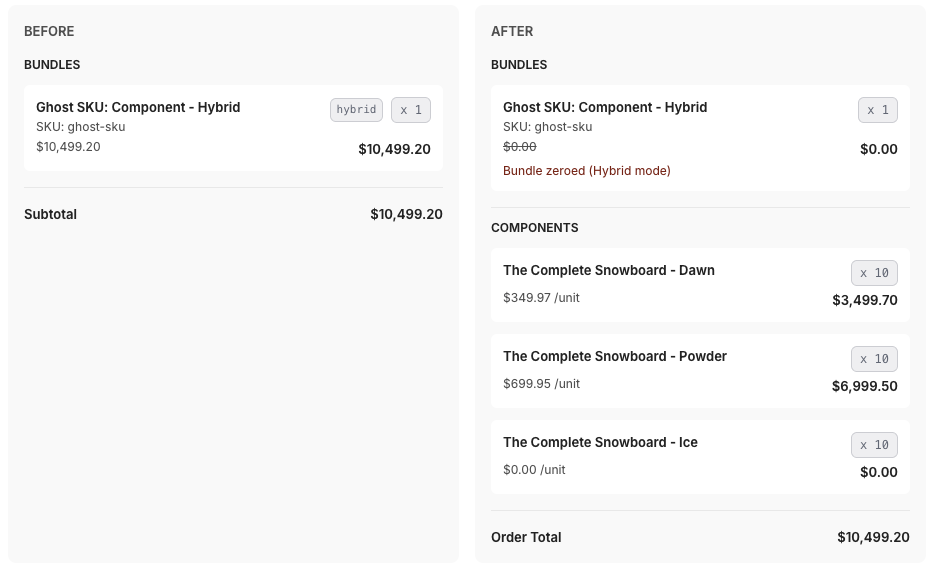
| Hybrid | ✅ Yes (set to $0.00) | ✅ Yes (priced) | Ops + bundle visibility retained |
| Reporting | ✅ Yes (priced) | ✅ Yes (set to $0.00) | Revenue stays on bundle, ops still sees components |
| Parent-Only (BOM) | ✅ Yes (priced) | ❌ No | Manufacturing/kitting cost model; no order line expansion |
The Transformation Pipeline
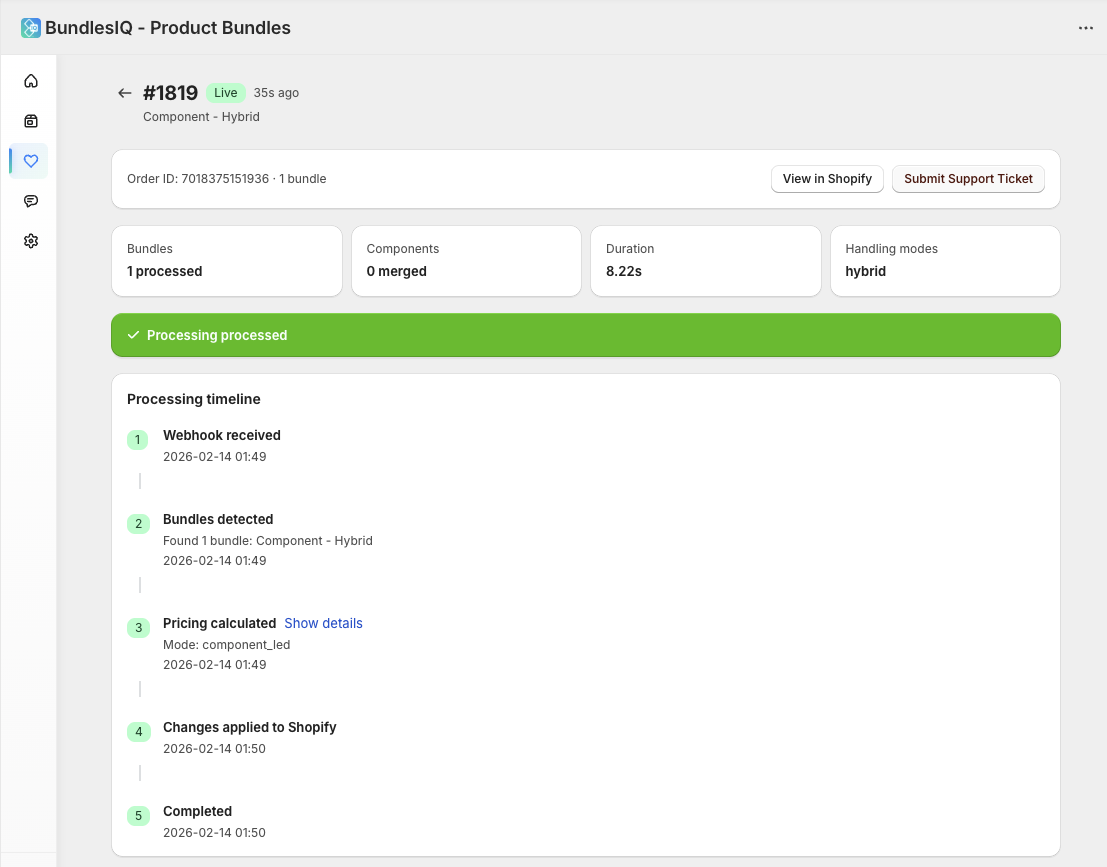
When an order (or draft order) is created, BundlesIQ runs this pipeline:
1) Detection
Shopify sends a webhook (for example, orders/create or draft_orders/create). BundlesIQ checks each line item’s variant ID against its bundle index.
- SKUs are optional — BundlesIQ does not require SKU to detect bundles
- Detection is based on variant identity, not product title/handle
2) 3PL Gating (Optional)
If 3PL protection is enabled, BundlesIQ can:
- Tag the order as processing (example:
BIQ_PROCESSING) - Optionally place a fulfillment hold so your 3PL/warehouse doesn’t import the order prematurely
3) Configuration Loading
BundlesIQ loads:
- Bundle definition (ghost SKU variant + component variants + quantities)
- Pricing configuration (bundle-level override or shop defaults)
- Handling mode (bundle override or shop default)
- Any guardrails (limits, validation rules, 3PL settings, etc.)
4) Price Calculation & Validation
BundlesIQ determines how pricing should be represented on the order. This is where most edge cases live.
Key reality:
- BundlesIQ primarily uses discounts/allocations to achieve target component prices.
- Increasing a component’s effective price above the variant’s base price is not reliably supported in every scenario.
Common validations:
- Bundle-Led pricing typically requires the component retail sum (qty × price) to be >= bundle price to avoid impossible allocations
- Fixed Price on a component must be <= the component’s retail price
5) Order Transformation (Mode-Dependent)
For Operational / Hybrid / Reporting modes, BundlesIQ edits the order:
- Adds component line items (correct quantities)
- Applies discounts/allocations to achieve the configured pricing outcome
- Modifies the ghost SKU line depending on handling mode (remove it, set it to $0, or keep it priced)
Notes:
- BundlesIQ avoids introducing additional charges during transformation (for example, customers shouldn’t suddenly pay more because of the expansion).
- Final shipping/tax presentation depends on store configuration and Shopify’s calculation rules, but the intent is “no surprise increase due to the transformation itself.”
For Parent-Only (BOM) mode, BundlesIQ does not add component line items to the order:
- The ghost SKU line item stays as-is
- No component lines appear on the order
- BundlesIQ can optionally manage component inventory by transitioning quantities into a non-sellable inventory state (e.g., reserved/committed depending on workflow), then:
- consume on fulfillment, or
- release on cancellation
6) Post-Processing
After successful processing:
- Processing tag is updated (example:
BIQ_PROCESSING→BIQ_READY) - Holds are released (if enabled)
- An audit metafield is written to the order (high-level summary of what happened)
- A bundle instance record is saved (full before/after snapshot + internal logs)
7) Error Handling
If processing fails:
- BundlesIQ does not “half-commit” changes. It validates first and only commits the order edit once checks pass.
- The order is marked as failed (example:
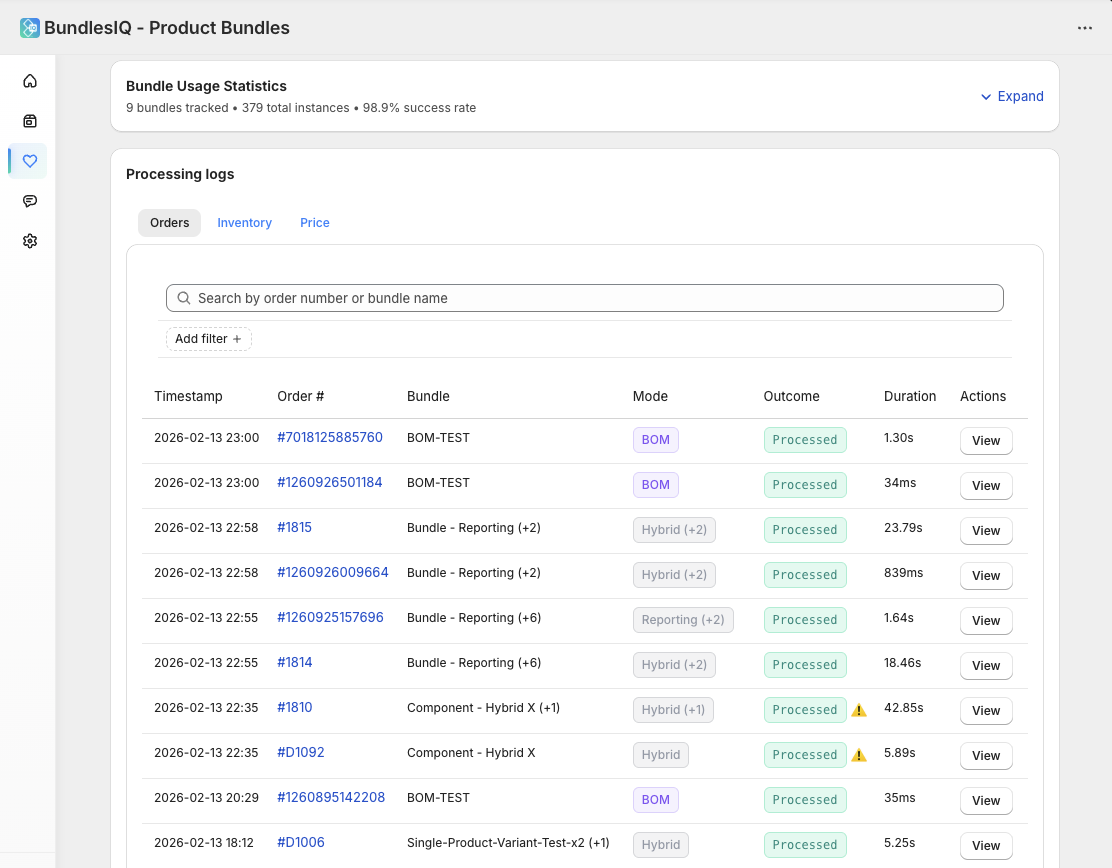
BIQ_ERROR) - Details are logged in the BundlesIQ Health dashboard
- Optional retry behavior may re-attempt processing after a cooldown
- You can manually Reprocess an order from Shopify Admin via the BundlesIQ action/menu (re-runs the pipeline)
Where Data Is Stored
BundlesIQ stores data both in Shopify and in BundlesIQ’s cloud database.
On your Shopify store
| Location | Data |
|---|---|
| Order tags | Processing state tags (e.g., BIQ_PROCESSING, BIQ_READY, BIQ_ERROR) |
| Order metafields | Audit trail / transformation summary (e.g., bundles_iq.transformation_audit) |
| Order notes (optional) | Human-readable warnings/flags (if enabled) |
In BundlesIQ’s cloud database
| Collection | Data |
|---|---|
| Bundles | Bundle definitions, components, substitution groups, pricing configuration |
| Bundle instances | Per-order processing records with before/after snapshots |
| Processing logs | Timestamped event log for webhooks, detection, edits, retries |
| Settings | Store preferences, handling mode defaults, scope, 3PL config |
| Bundle variant index | Ghost SKU variant IDs → bundle definition mapping |
| Component bundle index | Component variant IDs → bundles that include them |
Processing Times (What to Expect)
BundlesIQ processes asynchronously after Shopify sends the webhook. Processing time depends on:
- number of bundles on the order
- number of components per bundle
- Shopify API throughput + rate limits
- whether pricing allocation requires extra validation calls
Typical ranges:
- Small order (single bundle, few components): a few seconds
- Multiple bundles / many components: several seconds to ~tens of seconds
- High-volume queuing: longer
If 3PL protection is enabled, the order stays held until BundlesIQ marks it ready, so timing variance should not impact fulfillment accuracy.