
Pricing Strategy Setup
Your pricing strategy determines how the bundle price relates to the component prices and how discounts are calculated during order transformation. This guide explains both strategies and helps you choose the right one.
Set the default pricing strategy for new bundles and configure sync behavior. Each bundle can be individually configured, so you can always override the default.
What You Will Accomplish
After reading this guide, you will understand how bundle-led and component-led pricing work, how discounts are allocated, and which strategy fits your business.
When to Use This Guide
- You are creating a new bundle and need to choose a pricing approach
- You want to understand how prices appear on transformed orders
- You need to troubleshoot why a component price looks different than expected
Key Concept: Pricing Strategy and Handling Mode Are Independent
Your pricing strategy controls how prices are calculated. Your handling mode controls how the order looks. You can use any pricing strategy with any handling mode.
For example, you can use bundle-led pricing with Reporting mode — BundlesIQ still calculates the correct component prices internally (for catalog management and flagging), even though components appear at $0 on the order.
Parent-Only (BOM) mode note: Parent-Only mode uses bundle-led pricing by default. Pricing and retail sync are pre-configured and cannot be changed during onboarding. No component line items are added to the order and no price allocation is applied during order transformation. However, your pricing strategy still determines the ghost SKU's retail price (if retail sync is enabled) and is used for internal cost tracking and the price preview in the BundlesIQ app.
The Two Pricing Modes
| Value | Label | Description |
|---|---|---|
"bundle_led" |
Bundle-Led | Bundle price is fixed, discounts allocated to components. The bundle total determines the component prices (top-down) |
"component_led" |
Component-Led | Component prices determine the bundle total. Each component's price rolls up into the bundle price (bottom-up) |
Bundle-Led Pricing
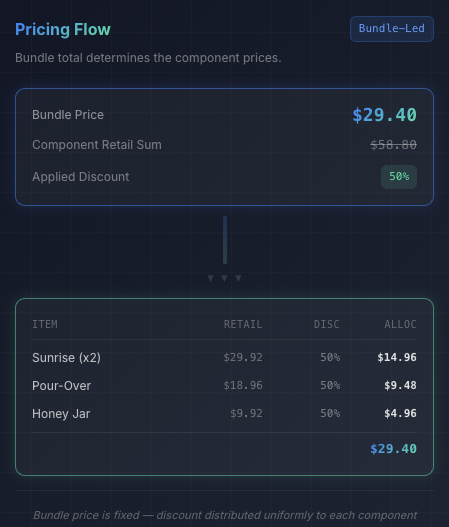
Bundle price is fixed — discounts are allocated to components.
Use this when your marketing or sales team sets the bundle price and you want components to share that price proportionally.
How It Works
- You set the bundle's retail price on the Shopify product (e.g., $99.00)
- BundlesIQ calculates how much of a discount each component needs so that the sum of component prices equals the bundle price
- During order transformation, BundlesIQ adds each component with a discount that achieves the target price
Discount Allocation Strategies for Bundle-Led
| Value | Label | Description |
|---|---|---|
"uniform_percent" |
Uniform Percent | Same percentage discount applied to every component |
"proportional" |
Proportional | Distribute discount proportionally by component value |
Uniform Percent
The same percentage discount is applied to every component.
Example:
Bundle retail price: $80.00
Components:
  Item A: $60.00 retail
  Item B: $40.00 retail
  Sum:    $100.00

Discount = 1 - ($80 / $100) = 20%

After transformation:
  Item A: $60.00 - 20% = $48.00
  Item B: $40.00 - 20% = $32.00
  Total:                  $80.00 ✓
Each component shows the same discount percentage on the order line.
Proportional Allocation
The bundle price is distributed across components based on their retail value as a proportion of the total.
Example:
Bundle retail price: $80.00
Components:
  Item A: $60.00 retail (60% of total)
  Item B: $40.00 retail (40% of total)
  Sum:    $100.00

After transformation:
  Item A: $80.00 × 60% = $48.00
  Item B: $80.00 × 40% = $32.00
  Total:                  $80.00 ✓
Uniform percent and proportional produce the same final prices but differ in how the discount is displayed. Uniform shows "20% off" on each line. Proportional shows the allocated price directly.
When to Use Bundle-Led
- Your bundle has a fixed promotional price ("$99 Summer Bundle")
- You want a simple, predictable pricing model
- Component prices may change but the bundle price should stay the same
- You prefer to set the price at the bundle level
Component-Led Pricing
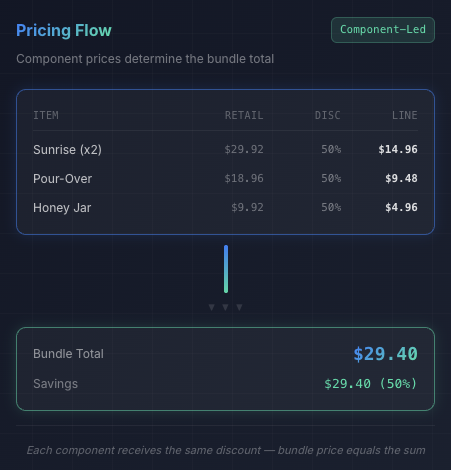
Component prices determine the bundle total.
Use this when different components need different discount treatments, or when you want the bundle price to automatically update when component prices change.
How It Works
- You set a discount for each component individually (or apply a uniform percent to all)
- The bundle's retail price is automatically calculated as the sum of all component bundle prices
- If retail sync is enabled, BundlesIQ updates the ghost SKU's price in Shopify to match
Discount Strategies for Component-Led
| Value | Label | Description |
|---|---|---|
"uniform_percent" |
Uniform Percent | Apply same discount percentage to all components |
"per_component" |
Per Component | Configure individual discounts for each component |
Uniform Percent
Same percentage discount applied to all components (simplest option).
Example:
Uniform discount: 15%
Components:
  Item A: $60.00 retail → $51.00
  Item B: $40.00 retail → $34.00

Bundle price (derived): $85.00
Per-Component: Percent Off
Each component has a different percentage discount.
Example:
Components:
  Item A: $60.00 retail, 25% off → $45.00
  Item B: $40.00 retail, 10% off → $36.00

Bundle price (derived): $81.00
Per-Component: Dollar Off
Each component has a fixed dollar discount.
Example:
Components:
  Item A: $60.00 retail, $15 off → $45.00
  Item B: $40.00 retail, $5 off  → $35.00

Bundle price (derived): $80.00
Per-Component: Specific Retail
Each component is set to an explicit bundle price.
Example:
Components:
  Item A: $60.00 retail → set to $45.00
  Item B: $40.00 retail → set to $35.00
  Display Stand: $30.00 retail → set to $0.00 (free with bundle)

Bundle price (derived): $80.00
This is particularly useful for free items in a bundle, such as display stands, samples, or promotional add-ons.
When to Use Component-Led
- Different components should have different discounts
- Some components should be free (displays, samples)
- You sell wholesale and need transparent per-item pricing on invoices
- You want the bundle price to auto-update when component retail prices change in Shopify
Pricing Strategy Decision Matrix
| Your scenario | Recommended strategy |
|---|---|
| Fixed promotional bundle price (e.g., "$99 Holiday Set") | Bundle-led |
| Simple, same discount for all components | Bundle-led (uniform percent) or Component-led (uniform percent) |
| Different discounts per component | Component-led (per-component) |
| Free items in the bundle (display units, samples) | Component-led (specific retail: $0) |
| Wholesale with line-item invoice visibility | Component-led |
| Bundle price should auto-update when component prices change | Component-led |
Retail Sync Behavior by Pricing Mode
Retail sync (sync_bundle_retail) behaves differently depending on your pricing mode. This is an important distinction:
| Pricing Mode | Retail Sync Enabled | Retail Sync Disabled |
|---|---|---|
| Component-Led | Bundle price recalculates automatically as the sum of (component retail × qty × discount) | Orders are flagged with a warning if component prices change. Manual review required |
| Bundle-Led | Bundles are flagged for review when component prices change (the bundle price itself does not auto-update, since it is fixed) | No action taken when component prices change |
In bundle-led mode, retail sync does not change your bundle price — it monitors component prices and flags bundles where the discount math may have shifted. In component-led mode, retail sync actively recalculates and updates the ghost SKU's price in Shopify.
Rounding and Variance
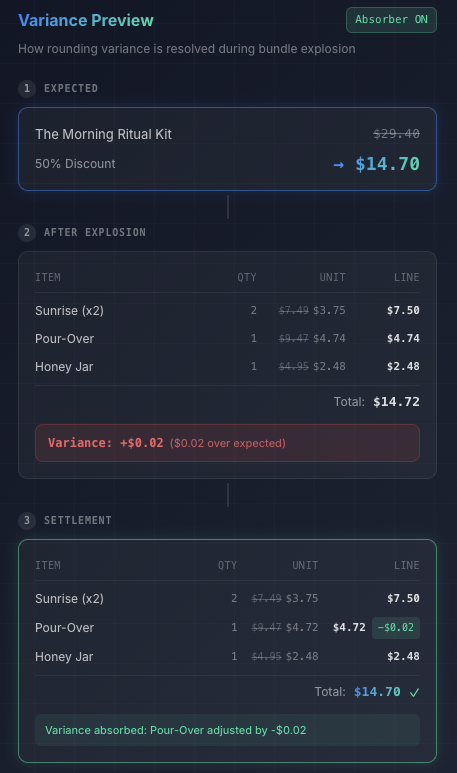
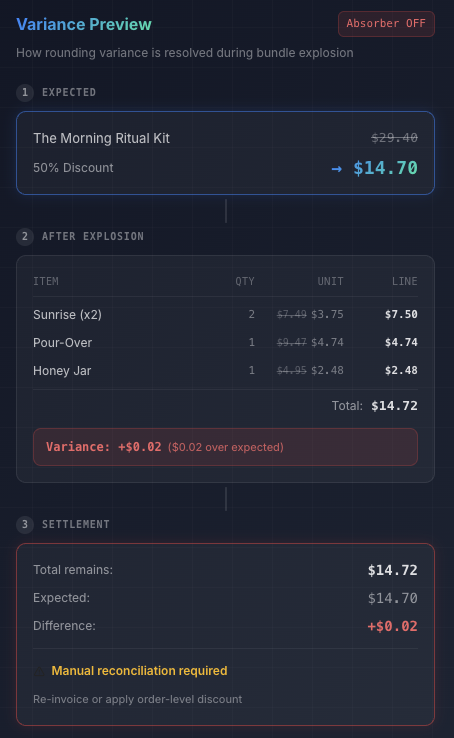
When BundlesIQ allocates prices across components, small rounding differences can occur (typically 1-10 cents). BundlesIQ handles this automatically:
- Variance absorber (enabled by default) — Adjusts a component's discount by a fraction of a cent to eliminate the difference. Operates within configurable thresholds: up to 30 cents total per order and 10 cents per individual line item
- Allocation line (fallback) — If the variance is too large for the absorber but below a critical threshold, BundlesIQ adds a small "Bundle Allocation" line item to reconcile the total
In both cases, the order total matches the original bundle price exactly.
Variance absorber ON — the absorber automatically adjusts a component to eliminate the rounding difference:
Variance absorber OFF — the variance remains and requires manual reconciliation:
How to Configure
Set the Default Pricing Strategy
- Navigate to BundlesIQ > Settings
- Under Default Pricing Configuration, select
"bundle_led"or"component_led" - Choose a discount strategy (
"uniform_percent"or"proportional"for bundle-led;"uniform_percent"or"per_component"for component-led) - Click Save
Set Pricing Per Bundle
- Open a bundle in BundlesIQ > Bundles
- In the pricing section, select your pricing mode and strategy
- If using per-component discounts, set the discount type and value for each component in the components editor
- Review the price preview to confirm the math
- Click Save
Pricing Warnings and Flags
BundlesIQ will warn you about problematic pricing configurations:
| Warning | Meaning | What to Do |
|---|---|---|
| Bundle price exceeds component sum | Bundle-led: your bundle price is higher than the sum of component retail prices. Customers would pay more for the bundle than buying items separately | Lower the bundle price or switch to component-led pricing |
| Dollar discount exceeds retail | Component-led: a dollar-off discount is greater than the component's retail price | Reduce the discount amount or use "specific retail: $0" instead |
| Specific retail exceeds contextual price | Component-led: you set a specific retail higher than the component's current Shopify price | Lower the specific retail value |
| Price increase not possible | At order time, BundlesIQ could not apply the calculated price because Shopify's Order Edit API does not allow increasing a line item's effective price | Review your pricing configuration. The component was added at its Shopify retail price instead |
How Discounts Appear on Orders
In Hybrid and Operational modes, discounts are shown explicitly on component line items:
Component Line Item:
  Original Price: $60.00
  Discount: -$12.00 (Bundle allocation)
  Final Price: $48.00
In Reporting mode, components appear at $0 regardless of pricing strategy.
In Parent-Only (BOM) mode, no component line items appear on the order at all — the bundle line stays at the original purchase price.
Common Mistakes
- Setting bundle price higher than component sum in bundle-led mode — BundlesIQ cannot increase prices through the Order Edit API. If this happens, components are added at their full retail price and the discrepancy is flagged
- Forgetting to update per-component discounts after retail price changes — If a component's Shopify price changes, review bundles using "specific retail" discounts to ensure they still make sense
- Mixing up pricing strategy and handling mode — Remember: pricing strategy = how prices are calculated. Handling mode = how the order looks. They are independent settings
- Assuming retail sync auto-updates the bundle price in bundle-led mode — In bundle-led mode, retail sync flags bundles for review but does not change the bundle price. Only component-led pricing auto-updates the bundle price