
Price Preview and Savings Math
BundlesIQ provides a price preview when creating or editing a bundle so you can verify that pricing calculations are correct before going live. This guide explains how to interpret the preview.
What You Will Accomplish
You will understand how to read the price preview in the bundle editor and verify that your pricing configuration produces the expected results.
The Price Preview Section
When you create or edit a bundle, the price preview displays:
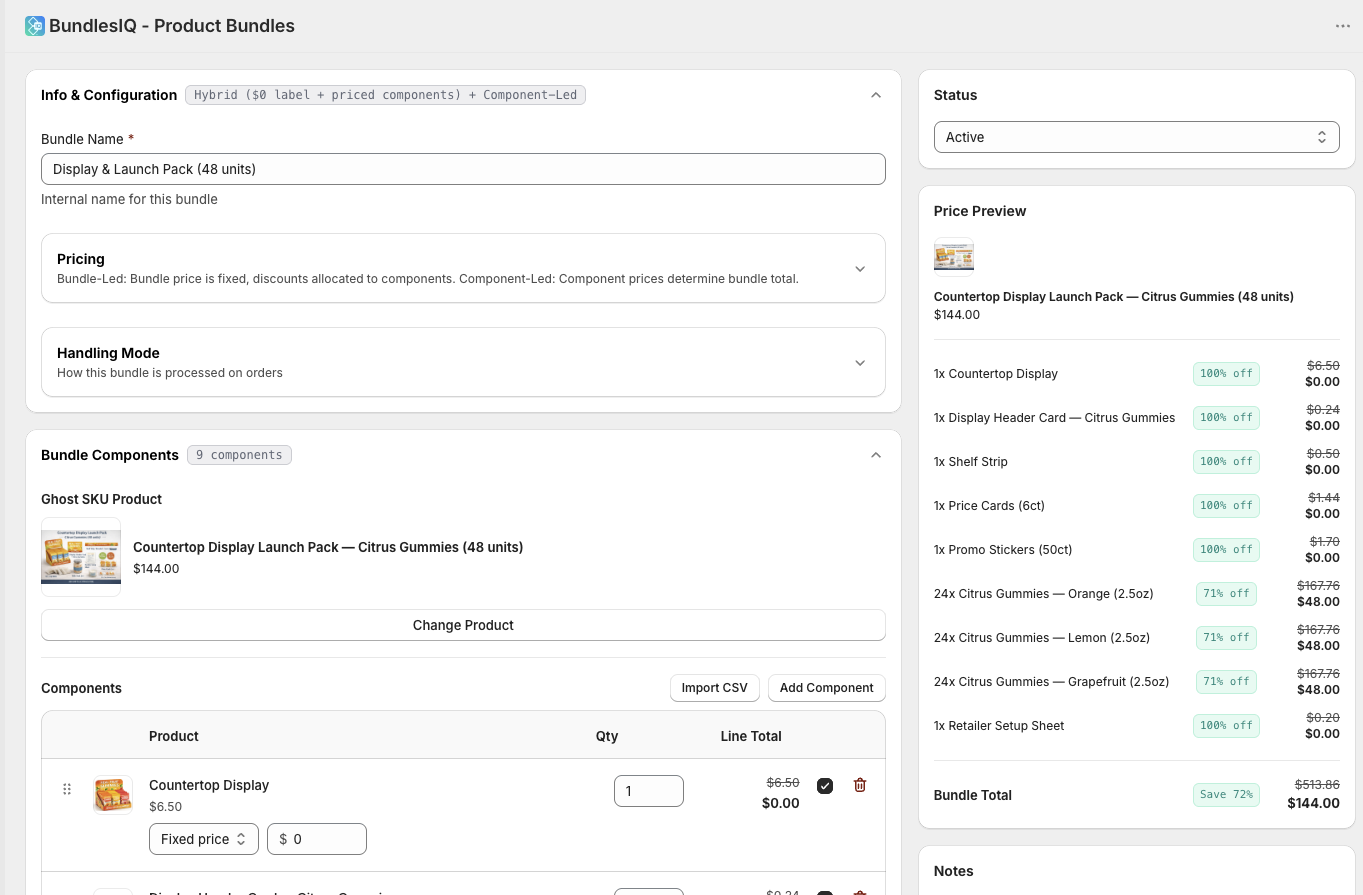
The price preview panel shows:
- Bundle retail price (ghost SKU price)
- Sum of component retail prices
- Discount applied to each component
- Final price per component
- Total after allocation
- Savings amount and percentage
Reading the Preview: Bundle-Led Pricing
For bundle-led pricing, the preview shows:
| Field | Meaning |
|---|---|
| Bundle retail | The price set on the ghost SKU product in Shopify |
| Component sum | The total of all component retail prices multiplied by their quantities |
| Effective discount | The discount percentage needed to bring the component sum down to the bundle retail |
| Per-component breakdown | Each component's retail price, discount amount, and resulting bundle price |
| Total after allocation | Should match the bundle retail exactly |
Example:
Bundle: Summer Essentials    Retail: $99.00
─────────────────────────────────────────────
Component           Retail    Discount   Bundle Price
Sunglasses (x1)     $50.00    -17.5%     $41.25
Beach Towel (x1)    $40.00    -17.5%     $33.00
Sunscreen (x1)      $30.00    -17.5%     $24.75
─────────────────────────────────────────────
Component Sum:      $120.00
Total After Alloc:   $99.00 ✓
Savings:             $21.00 (17.5% off)
Reading the Preview: Component-Led Pricing
For component-led pricing, the preview shows:
| Field | Meaning |
|---|---|
| Per-component breakdown | Each component's retail price, configured discount, and resulting bundle price |
| Bundle retail (derived) | The sum of all component bundle prices — this is what the ghost SKU price should be set to |
| Total savings | The total discount compared to buying components individually |
Example:
Bundle: Starter Kit with Display
─────────────────────────────────────────────
Component           Retail    Discount        Bundle Price
Product A (x1)      $80.00    None            $80.00
Product B (x1)      $80.00    None            $80.00
Display Stand (x1)  $40.00    Specific: $0    $0.00
─────────────────────────────────────────────
Bundle Retail (derived): $160.00
Savings: $40.00 (20% off buying separately)
Warning Indicators
The price preview highlights potential issues:
| Indicator | Meaning |
|---|---|
| Yellow warning | Bundle price exceeds component sum (would require price increase, which may fail on orders) |
| Red error | A component discount would result in a negative price or other invalid state |
| Info notice | Rounding may cause a small variance (1-10 cents) that will be automatically reconciled |
Verifying Your Pricing
Before activating a bundle, check these things in the preview:
- Total after allocation matches bundle retail — The math should add up exactly
- No warning indicators — Resolve any yellow or red flags before going live
- Per-component prices look reasonable — Verify that each component's allocated price makes sense for your invoicing and reporting needs
- Quantities are correct — Each component shows the right quantity per bundle
Retail Price Sync (Component-Led)
If you use component-led pricing and have retail sync enabled, BundlesIQ automatically updates the ghost SKU's Shopify price to match the derived bundle retail. This means:
- When you save a bundle with component-led pricing, BundlesIQ calculates the sum of component bundle prices and updates the ghost SKU product's price
- If a component's retail price changes in Shopify, BundlesIQ recalculates the derived bundle price and updates the ghost SKU accordingly
Parent-Only (BOM) Mode
In Parent-Only mode, no component price allocation is applied to the order — the bundle line stays at its original price and no component lines are added. However, the price preview is still useful:
- It shows the component cost breakdown for internal reference
- It verifies that the ghost SKU's retail price matches expectations
- If BOM cost lines are configured, they appear in the preview alongside component costs
Common Mistakes
- Not checking the preview before activating — Always verify the math in the preview. A misconfigured discount can cause incorrect pricing on real orders
- Ignoring warning indicators — Yellow and red flags indicate real problems that will affect order processing
- Assuming the preview accounts for Shopify discount codes — The preview shows bundle pricing only. If a customer applies a Shopify discount code at checkout, the additional discount is applied on top of the bundle allocation