
Draft Orders and B2B Workflows
BundlesIQ processes bundles in Shopify draft orders, making it compatible with B2B, wholesale, and manual order creation workflows.
What You Will Accomplish
You will understand how BundlesIQ handles draft orders, what to expect during the B2B workflow, and how draft order processing differs from standard order processing.
When to Use This Guide
- You create draft orders for wholesale or B2B customers
- You use Shopify's B2B features (company accounts, price lists)
- You want to understand the timing and behavior of bundle processing on draft orders
Enabling Draft Order Processing
Draft order processing is controlled in your global settings:
- Navigate to BundlesIQ > Settings
- Ensure Process draft orders is enabled
- Click Save
How Draft Order Processing Works
Detection
BundlesIQ subscribes to Shopify's draft_orders/create and draft_orders/update webhooks. When a draft order is created or updated and contains a bundle ghost SKU, BundlesIQ detects it and begins processing.
Transformation
Draft order transformation works the same as standard order transformation:
- BundlesIQ detects bundle line items
- Loads the bundle configuration, components, and pricing
- Calculates price allocations based on your pricing strategy
- Transforms the draft order by adding component line items and applying discounts
Key Difference: API Method
| Order Type | Transformation Method |
|---|---|
| Standard orders (Hybrid/Reporting/Operational) | Shopify Order Edit API (begin → add lines → apply discounts → commit) |
| Draft orders (Hybrid/Reporting/Operational) | Shopify draftOrderUpdate mutation (direct line item replacement) |
| Standard or draft orders (Parent-Only/BOM) | No order editing — inventory reservation via Shopify inventory state API |
Draft orders use a simpler API that allows direct price setting on line items, which means:
- Price increases are possible on draft orders (unlike the Order Edit API for standard orders)
- No calculated order workflow — Changes are applied directly
- Full price control — BundlesIQ can set exact prices per component without relying on discounts
The B2B Workflow
A typical B2B workflow with BundlesIQ:
1. Create the Draft Order
- Open Shopify Admin > Orders > Drafts > Create draft order
- Add the bundle product (ghost SKU) to the draft order
- Set the customer (optional: associate with a B2B company)
- Apply any relevant discounts or price adjustments
2. BundlesIQ Processes the Draft
BundlesIQ automatically detects and transforms the draft order. Within a few seconds:
- Component line items are added to the draft
- Pricing is allocated based on your bundle configuration
- The bundle line is handled according to your handling mode
3. Review the Transformed Draft
- Open the draft order in Shopify Admin
- Verify the component line items and prices look correct
- Make any manual adjustments if needed (you can still edit the draft)
4. Complete the Draft Order
When ready, complete the draft order by:
- Sending an invoice to the customer for payment
- Marking as paid (for pre-negotiated terms)
- Accepting payment directly
If you edit the draft order after BundlesIQ processes it and add another bundle product, BundlesIQ will re-process the draft when the
draft_orders/updatewebhook fires.
Processing Scope and Draft Orders
Your processing scope settings apply to draft orders:
- All orders — All draft orders with bundles are processed
- Tagged only — Only draft orders with matching tags are processed (you must tag the draft order before or at creation time)
- Exclude tags — Draft orders with excluded tags are skipped
Wholesale Discount Codes on Draft Orders
If you apply a discount code to a draft order:
- BundlesIQ detects the applied discount
- The discount is factored into the component price calculations
- In Hybrid and Operational modes, both the bundle discount and the wholesale discount are reflected in the component line prices
- In Parent-Only (BOM) mode, the discount stays on the bundle line as-is (no component lines are added)
Example with a 50% wholesale discount:
Bundle retail: $100.00
50% discount applied: $50.00 order total

After transformation (Hybrid mode):
  Bundle line:    $0.00
  Component A:    $60 retail → 20% bundle discount → 50% promo = $24.00
  Component B:    $40 retail → 20% bundle discount → 50% promo = $16.00
  (Prices reflect combined bundle allocation + wholesale discount)
  Total: $50.00
3PL Protection on Draft Orders
3PL protection tags (BIQ_PROCESSING, BIQ_READY) are applied to draft orders the same way as standard orders. However, since draft orders are not typically sent to 3PLs until they are completed and converted to real orders, the tags serve primarily as status indicators.
Reverting a Draft Order Transformation
Unlike regular orders, draft orders can be reverted — meaning the bundle transformation is undone and the draft order is restored to its pre-BundlesIQ state.
When to Revert
- The customer changed their mind and you need to modify the draft before completing it
- The bundle configuration was wrong and you need to start over
- You want to test a different handling mode or pricing strategy
How to Revert
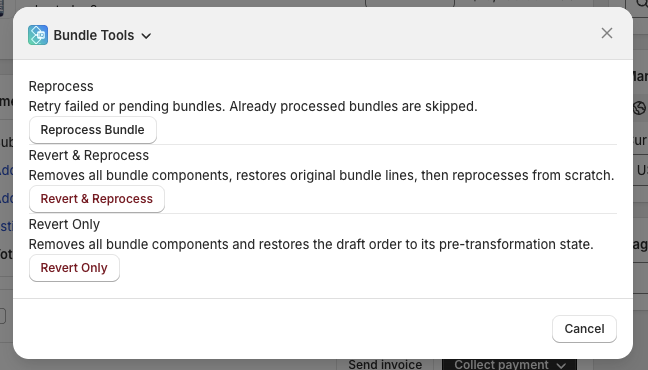
- Open the draft order in Shopify Admin
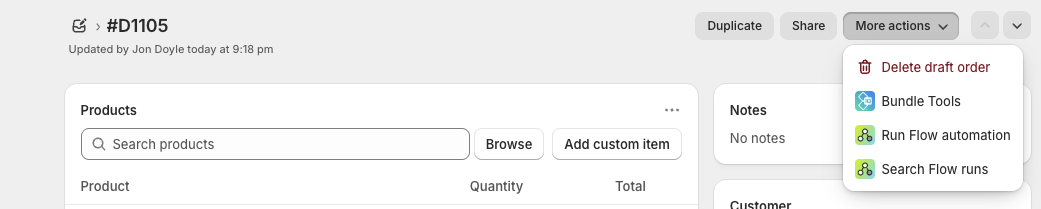
- Click the Bundle Tools action (in the "More actions" menu)
- Choose one of:
- Revert Only — Undoes the transformation and leaves the draft in its original state. A
BIQ_REVERTEDtag is applied to prevent automatic re-transformation - Revert & Reprocess — Undoes the transformation and immediately re-runs processing from scratch
- Revert Only — Undoes the transformation and leaves the draft in its original state. A
What Reverting Does
- Removes all BundlesIQ-created component line items and adjustment lines
- Restores ghost SKU lines that were removed in Operational mode (re-adds the variant with original quantity)
- Removes the "Bundle transformation" discount from Hybrid mode bundle lines (restoring them to their original price)
- Preserves all non-bundle line items untouched
Reverting is only available for draft orders that have not been completed (converted to a regular order). Once a draft order is completed, the resulting regular order cannot be reverted.
Common Mistakes
- Forgetting to enable draft order processing — If "Process draft orders" is disabled in settings, BundlesIQ will not touch draft orders
- Editing a draft after processing and expecting no re-processing — If you add or change line items, BundlesIQ may re-process when the
draft_orders/updatewebhook fires. This is generally safe (idempotent), but be aware of it - Completing a draft order that was not processed — If BundlesIQ did not process the draft (due to settings or an error), completing it creates a standard order with only the ghost SKU. BundlesIQ will then attempt to process it as a standard order
Troubleshooting
| Issue | Possible Cause | Solution |
|---|---|---|
| Draft order was not transformed | "Process draft orders" is disabled | Enable it in Settings |
| Draft order was not transformed | Processing scope is set to "Tagged only" and the draft does not have the required tag | Add the required tag to the draft order |
| Components were added but prices look wrong | A discount code on the draft is interacting with bundle pricing | Review the price allocation and check if the combined discount makes sense |
| Draft was processed but then reverted | The draft was updated after processing, triggering a re-evaluation | Check the BundlesIQ Health dashboard for processing logs |