
Handling Modes Explained
Choosing a handling mode is the most important configuration decision in BundlesIQ. It determines how your orders look after bundle processing, which directly affects fulfillment, reporting, accounting, and customer communication.
What You Will Accomplish
After reading this guide, you will understand the four handling modes, what each one does to your orders, and which mode is best for your business.
When to Use This Guide
- You are setting up BundlesIQ for the first time
- You are evaluating whether to change your current handling mode
- You want to understand the reporting and fulfillment implications of each mode
The Four Handling Modes
Hybrid Mode
Best for B2B & Wholesale
Ideal for B2B shops that need to show retailers exactly what they paid and keep clear component-level pricing for fulfillment, reporting, or downstream systems.
| What happens | Detail |
|---|---|
| Bundle line item | Stays on the order at $0.00 |
| Component line items | Added with their allocated prices |
| Order total | Unchanged from original |
How it works:
- Bundle line item remains on the order at $0
- Individual components are added with their actual prices
- Preserves both what was purchased and what was fulfilled
Example order after processing:
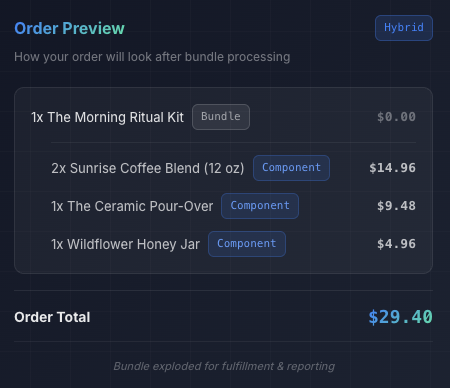
Revenue attribution: Component SKUs
Reporting Mode
Recommended for DTC / B2C
Best when customer clarity and clean revenue reporting matter more than component-level pricing. Accounting stays tied to the bundle SKU while fulfillment still sees the underlying products.
| What happens | Detail |
|---|---|
| Bundle line item | Stays on the order at its original price |
| Component line items | Added at $0.00 each |
| Order total | Unchanged from original |
How it works:
- Bundle remains on the order with its purchase price
- Components are added at $0
- Customer sees exactly what they bought, at the price they paid
Example order after processing:
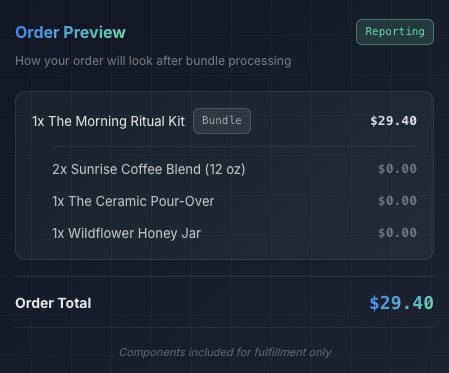
Revenue attribution: Bundle (ghost) SKU
Operational Mode
Best for Distribution & 3PL-driven workflows
Designed for warehouses, distributors, and 3PLs that require strict SKU-level accuracy for picking, packing, inventory sync, and integrations — no bundle abstraction left behind.
| What happens | Detail |
|---|---|
| Bundle line item | Removed from the order (quantity set to 0) |
| Component line items | Added with their allocated prices |
| Order total | Unchanged from original |
How it works:
- Bundle is fully removed from the order
- Only the priced components remain
Example order after processing:
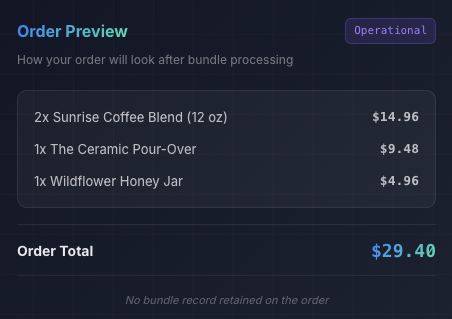
Revenue attribution: Component SKUs
Parent-Only (BOM) Mode — Beta
Best for Made-to-Order & Kitting
Keep the bundle as a single line item while BundlesIQ tracks the underlying components behind the scenes. Ideal when you assemble, kit, or build before shipping — and want a clean order and invoice.
| What happens | Detail |
|---|---|
| Bundle line item | Stays on the order at its original price |
| Component line items | Not added to the order |
| Component inventory | Reserved and consumed automatically behind the scenes (optional restock on returns) |
| Order total | Unchanged from original |
How it works:
- Bundle SKU stays on the order
- Components are reserved and consumed automatically (optional restock on returns)
- No line-item "explosion" or order edits
Example order after processing:
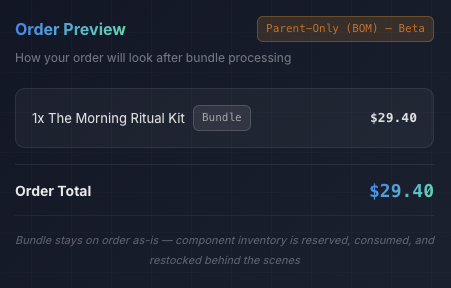
Revenue attribution: Bundle (ghost) SKU
Parent-Only mode is currently in Beta. It is fully functional but has v1 limitations: no order edit support, no split fulfillment, and single location strategy is recommended. Additional configuration options may be added in future updates.
Mode Decision Matrix
Use this table to identify the right mode for your primary need:
| Your priority | Recommended mode |
|---|---|
| "I want fulfillment accuracy and component-level pricing" | Hybrid |
| "I want my warehouse to see only real SKUs, nothing else" | Operational |
| "I want revenue attributed to the bundle product" | Reporting |
| "I sell wholesale and need per-item pricing on invoices" | Hybrid |
| "I sell DTC and want the customer to see the bundle they bought" | Reporting |
| "I use a 3PL that imports orders directly" | Operational or Hybrid |
| "I need clean Shopify analytics on bundle performance" | Reporting |
| "I want both" (fulfillment accuracy + bundle visibility) | Hybrid |
| "I assemble or kit products and only need inventory reservations" | Parent-Only (BOM) |
| "I do not want any order editing — just track component stock" | Parent-Only (BOM) |
Quick Decision Guide
- If you ship through a 3PL — Choose Operational (cleanest for 3PL systems) or Hybrid (if you need the bundle reference)
- If you sell wholesale — Choose Hybrid (retailers need to see per-item costs)
- If you sell DTC — Choose Reporting (customers see the bundle they bought)
- If you assemble, kit, or manufacture to order — Choose Parent-Only (BOM) (no order editing; component inventory is managed behind the scenes)
- If you are unsure — Start with Hybrid (default). It provides the most flexibility and can be changed later
How to Set Your Handling Mode
Store Default
- Navigate to BundlesIQ > Settings
- Select your preferred mode under Default Handling Mode
- Click Save
Per-Bundle Override
- Open a bundle in BundlesIQ > Bundles
- Change the Handling Mode dropdown to a specific mode (or leave as "Use store default")
- Click Save
What the Customer Sees
In all four modes, the customer's checkout experience is identical — they purchase the bundle product at its listed price. The transformation happens after checkout, so:
- The customer's order confirmation email shows the original bundle line item (the transformation has not happened yet at email send time in most cases)
- If you use Shopify's order status page and the transformation completes quickly, customers may see the transformed order
If customer-facing order clarity is important to you, Reporting mode and Parent-Only mode preserve the most familiar view for the customer, since the order appears exactly as placed.
Changing Modes Later
You can change your handling mode at any time, and you can override the handling mode per bundle. The change applies to new orders only — previously processed orders are not retroactively modified.
Common Mistakes
- Choosing Operational when you need bundle-level reporting — If your sales team tracks bundle performance in Shopify Analytics, Operational mode will attribute revenue to component SKUs instead
- Choosing Reporting when your 3PL needs priced line items — Some 3PLs expect all items to have prices for customs declarations. $0 component lines may cause issues
- Choosing Parent-Only when your 3PL needs component line items — Parent-Only does not add component lines to the order. If your warehouse picks from line items, use Hybrid, Operational, or Reporting instead
- Not testing with a real order before going live — Always place a test order and verify the result matches your expectations. See Go-Live Checklist