
Plan a production order and reserve components
Create a production order from a manufacturing BOM, schedule it, and release it when the components are ready. Releasing commits the component stock to the run.
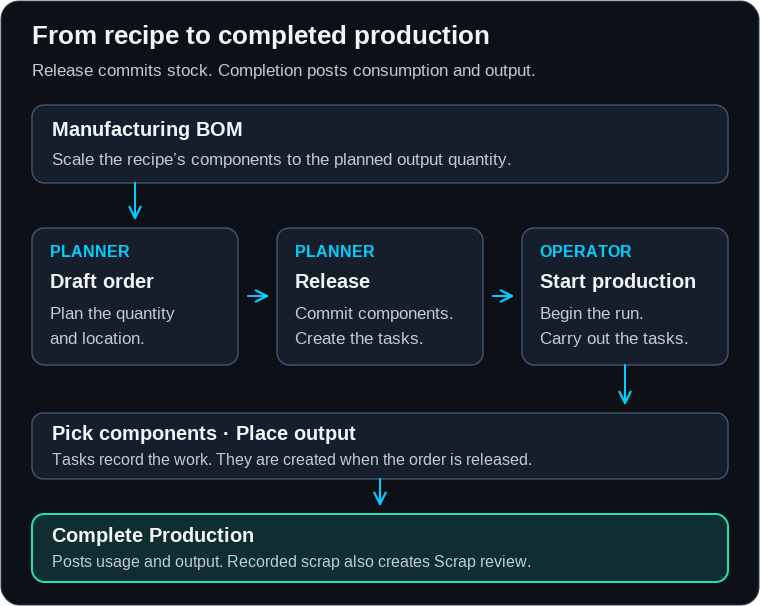
View the production diagram at full size.
Before you start
- The output material needs an active Manufacturing BOM. See bills of materials.
- The production location must be managed in Zapstra. See Locations and stock pools.
Create a production order
- Open Production and select Create production order.
- Under 1. Output material, search for the finished good or semi-finished material.
- Under 2. Manufacturing BOM, choose the version. If there's only one, it's Auto-selected. Check its base quantity.
- Under 3. Run details, enter Planned quantity and choose the Production location.
- Check Component check. It lists the BOM's direct components and the quantities this run needs.
- Under Schedule, optionally enter Planned start, Due date (YYYY-MM-DD) and Work center, and add Notes.
- Select Create production order.
Check the result: the order opens as Draft with an MO number. Check its Components table against your recipe.
To change the schedule later, edit Planning on the order and select Save planning. Use List, Calendar or Work queue in Production to see planned work. On the calendar you can reschedule an order.
Choose component bins and release
- Under Planned component bins, enter where each component will be picked from, then select Save bins. These fields currently need the bin's system ID, not its printed code. If you don't have it, contact Support.
- Select Release to commit the stock. Select Release and start to also start the run.
Check the result: the order shows Released (or In progress), and Work shows Pick components and Place output. Planned bins can't be changed after release.
Release only uses stock you can claim now. Stock on an open purchase order, or already committed elsewhere, doesn't count.
Withdraw or cancel
- Withdraw release: returns a released order to draft and frees its components. Enter the reason. It isn't available once work has been recorded.
- Cancel: ends a draft or a released order with no recorded work.
Send output to another location
Transfer to different location on completion moves the output to another location (in a different stock pool) when the order completes. Choose the Transfer to location. The output quantity must then be a whole number. Orders set up this way can't be corrected later, only reversed. See production corrections.
If something goes wrong
| What you see | What to do |
|---|---|
| Not enough stock to release | The order stays a draft and nothing is claimed. Each line shows what's short. Add stock, or use the offered Order plan action to plan a purchase, then release again. |
| Released, but not started | The release worked. Select Start production again, or Withdraw release. Don't create another order. |
| This release cannot be withdrawn | Work is already recorded. Complete, correct or reverse the order instead. |
| "No active manufacturing BOMs found for this material." | Activate a Manufacturing BOM first. |
| Manufacturing BOMs could not be loaded or Locations could not be loaded | Select Try again. |