
Send, track and close purchase orders
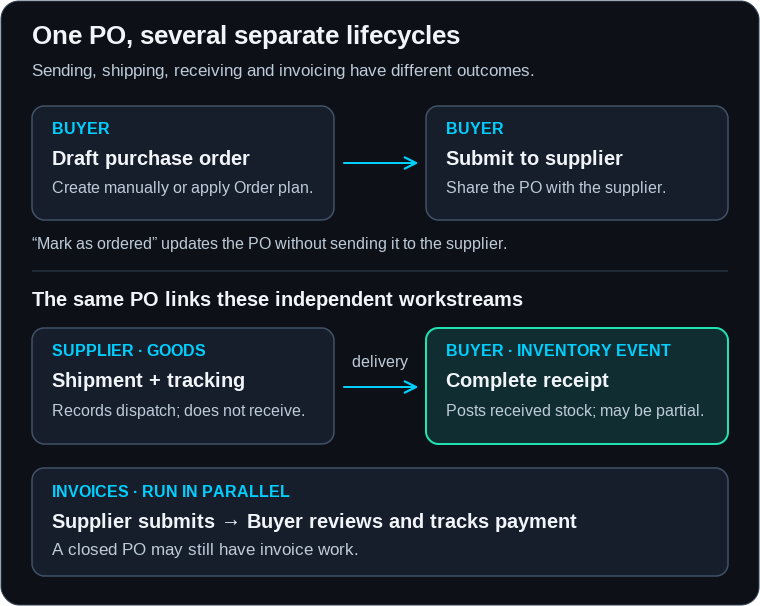
Send a saved purchase order (PO) to your supplier or record an order you placed elsewhere. Then follow it through shipping, receiving and invoicing until you close it.
Start with a saved draft.
Send the order
Open the draft and open its Submit menu. The same menu is on the Create purchase order page.
| Choose | When | What happens |
|---|---|---|
| Submit to supplier | You want the supplier to confirm, ship and invoice in the Supplier Portal. | Zapstra emails the supplier a link to the order. |
| Mark as ordered | You already placed the order by phone, email or another system. | The PO becomes Submitted. Nothing is sent to the supplier. |
- Check the supplier, destination, requested delivery and total.
- Choose Submit → Submit to supplier.
- If you see Confirm these dates before sending, read each line's warning. A required-by date may now be inside the supplier's lead time. Fix the order, or select Send anyway.
Check the result: Purchase order sent to the supplier appears, the status is Submitted and Collaboration shows Awaiting supplier.
To bring a Mark as ordered PO into the portal later, use More actions → Send to supplier. Tell the supplier it is the same order, not a new one.
Check that the supplier got the email
Each email to the supplier appears in the Timeline tab as Emailed supplier: with what was sent, such as PO sent or Reminder. Its badge shows what happened:
| Badge | Meaning |
|---|---|
| Delivered | The supplier's mail server accepted it. |
| Sending, Sent | On its way. |
| Delayed | The supplier's server is delaying it. Zapstra keeps retrying. |
| Undelivered, Spam, Not sent, Unconfirmed | The supplier may not have it. Open More on the entry for the reason and the addresses. |
When a recent email failed, the PO shows Your supplier may not have received the latest email. Fix the address if needed, then use More actions → Request update from supplier to send again.
See what your supplier sees
- Preview supplier portal opens the supplier's page read-only. Nothing you do there is sent.
- The PO header shows Last recorded supplier view, and the Timeline records Supplier portal viewed.
- More actions → Replace access link makes a new supplier link. Previous links stop working. No message is sent, so share the new link yourself.
Follow the order
| On the PO page | The supplier sees | Your next step |
|---|---|---|
| Draft | Nothing yet | Edit, then Submit. Or More actions → Delete draft. |
| Submitted, Collaboration Awaiting supplier | Awaiting Response | Wait, or More actions → Request update from supplier. |
| Submitted, Collaboration Awaiting your review | Under Review | Review the supplier's changes. |
| Submitted, Collaboration Not sent (marked as ordered) | "This purchase order has not yet been sent for review." | Receive the goods when they arrive. |
| Acknowledged, Collaboration Committed | Committed | Wait for the shipment. |
| Collaboration Partially shipped or Shipped | Partially Shipped or Shipped (Delivered once the carrier confirms every shipment) | Track shipments and receive what arrives. |
| Partially received | Same as above | Receive the rest, open a dispute, or close short. |
| Fully received | Same as above | Review the invoice, then Close. |
| Closed | Closed | Review any invoice that still arrives. |
| Canceled | Cancelled | Nothing. |
A PO page has these tabs: Lines (ordered, shipped, received, remaining), Shipments, Collaboration (versions and invoices), Receiving, Reconciliation (once the supplier has committed), Timeline (comments and activity) and Documents. After you submit, the header shows a bar such as Shipped 67% · Received 33%, counted in units.
Find orders in the list
Purchase orders opens on All, which hides Canceled and Closed orders. Turn on Show cancelled and closed in the filter bar to see them.
Other views: Needs review, Awaiting supplier, Late, Ready to receive, Invoices to review, Draft, Open, Receiving, Received and Closed. Invoices to review includes closed orders.
The Progress column shows shipped and received percentages. Delivery status and Est. delivery come from the order's shipments. An Invoice marker means an invoice needs review.
End an order
| You want to | Use |
|---|---|
| Throw away a draft that was never sent or shared | More actions → Delete draft. It disappears everywhere and can't be undone. |
| Stop an order that won't go ahead | More actions → Cancel order. Tell the supplier too. |
| Finish an order that was received in full | Close |
| Stop expecting the rest of a part-received order | More actions → Close. See close short. |
| End the supplier conversation but keep the order | More actions → Close PO, or choose Collaboration only when closing short. |
If Delete draft isn't offered, Cancel order shows why, for example Can't delete: sent to supplier.
Before closing, the dialog lists open or missing invoices. Choose Keep open to check them first, or Close anyway. A supplier can still submit a first invoice after you close.
Duplicate copies the PO into a new draft. Check its dates, quantities and prices before sending.
If something goes wrong
| What you see | What to do |
|---|---|
| Destination address required before sending | Complete the location's shipping address, then send. |
| Confirm these dates before sending | Adjust the lines, or select Send anyway if the dates are right. |
| Your supplier may not have received the latest email | Open the email in Timeline, check the address, then Request update from supplier. |
| Supplier says the link doesn't work | Check whether someone used Replace access link. Share the current link. |
| An order you expect is missing from the list | Turn on Show cancelled and closed, or clear the search and view. |
| This draft can't be deleted anymore | It was shared with the supplier since you opened it. Use Cancel order. |
After a timeout, reopen the PO before you try again. See troubleshooting.